TL;DR: Google Sheets can work as a lightweight CRM for founders, solo sellers, and small teams that need a simple way to track contacts, deals, owners, follow-ups, and activity history. In 2026, Sheets is more useful because Gemini can help eligible Workspace users create tables, formulas, charts, dropdowns, filters, and summaries, but a spreadsheet still breaks down when reps need reliable call logging, SMS history, permission controls, forecasting, and CRM-connected sales workflows. Start with the copyable tabs, fields, formulas, and follow-up script below, then move into a real CRM and a sales engagement tool like Kixie when spreadsheet work starts slowing down revenue activity.
Google Sheets can be used as a CRM when the sales process is simple and the team agrees on one way to track every lead, deal, and follow-up. It is not a full CRM by itself. It is a flexible spreadsheet that can hold CRM-style data, make simple dashboards, and help a small team stay organized until the workflow needs stronger automation, activity capture, reporting, and access controls.
This guide is for sales teams that want a practical Google Sheets CRM structure, not a vague template pitch. You can recreate the tabs, formulas, and fields below in a blank Sheet, then use the decision checklist to decide when it is time to move beyond the spreadsheet.
Can Google Sheets Work as a CRM in 2026?
Yes, Google Sheets can work as a starter CRM when the job is narrow:
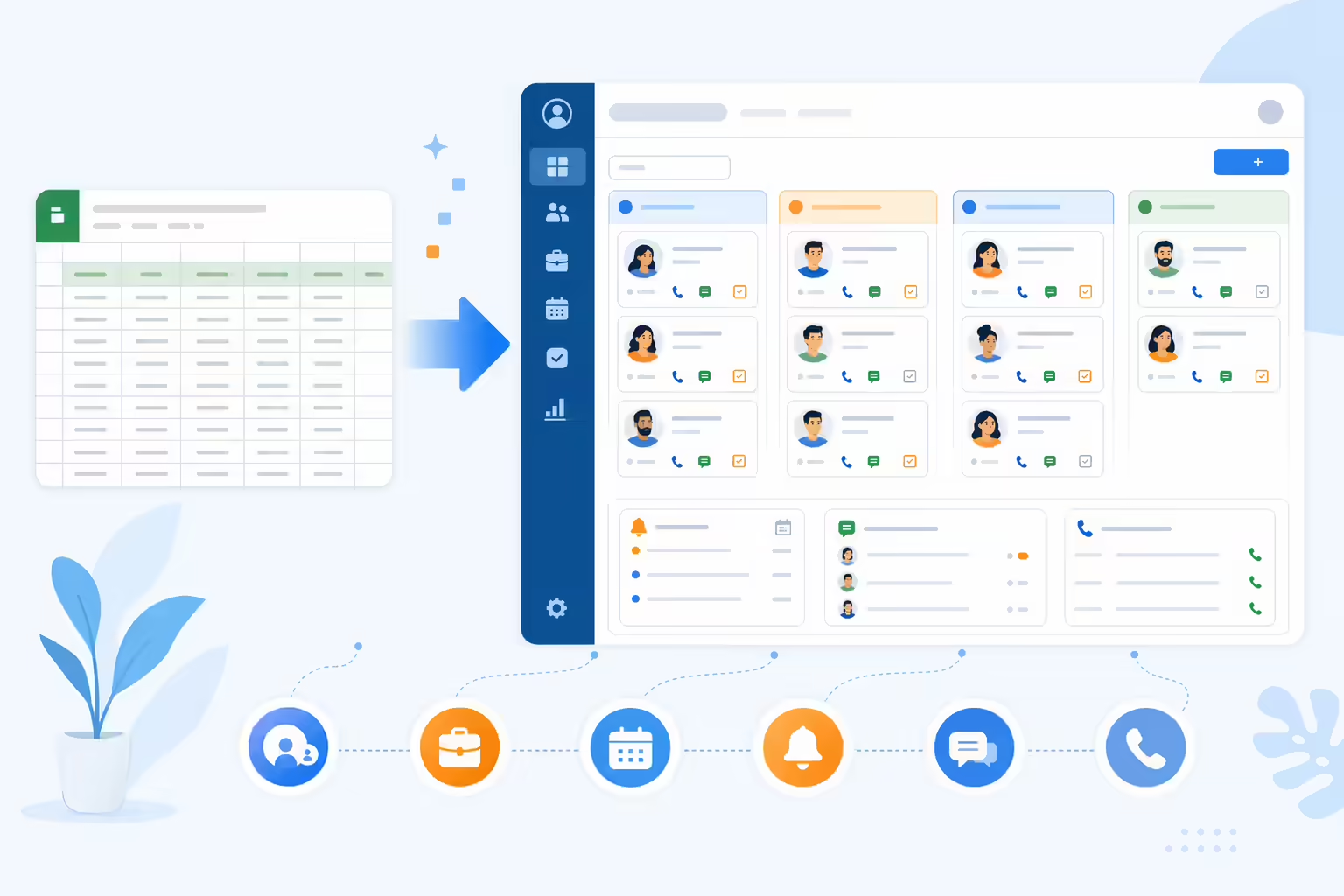
- Track leads, contacts, companies, and deals in one shared place.
- Give every opportunity an owner, stage, value, source, and next follow-up date.
- Filter a rep’s active opportunities.
- Build a simple pipeline dashboard.
- Keep a basic activity log for calls, emails, meetings, and notes.
That makes Sheets useful for founder-led sales, early-stage teams, agency owners, consultants, and small businesses that do not yet need a full CRM implementation.
The 2026 context matters because Sheets has better support for structured work than many old spreadsheet CRM guides assume. Google says Gemini in Sheets can help eligible users create tables, formulas, charts, dropdowns, filters, conditional formatting, pivot tables, and summaries. Google also documents Gemini-assisted table creation and table naming in Sheets. Those features can speed up setup, but they do not replace CRM process design. A messy spreadsheet with Gemini is still a messy CRM.
Use Google Sheets as a CRM when your sales motion is simple. Do not use it as the long-term system of record if multiple reps are making calls, texting prospects, handing off deals, forecasting revenue, or reporting on activity by team, campaign, or source.
Sources for current Sheets capabilities: Gemini in Google Sheets, Tables in Google Sheets with Gemini, and the Google Workspace Marketplace Sales and CRM category.
What to Put in a Google Sheets CRM
A useful Google Sheets CRM needs separate tabs for different kinds of sales data. Do not put every field in one giant sheet. That becomes hard to filter, easy to break, and slow to review.
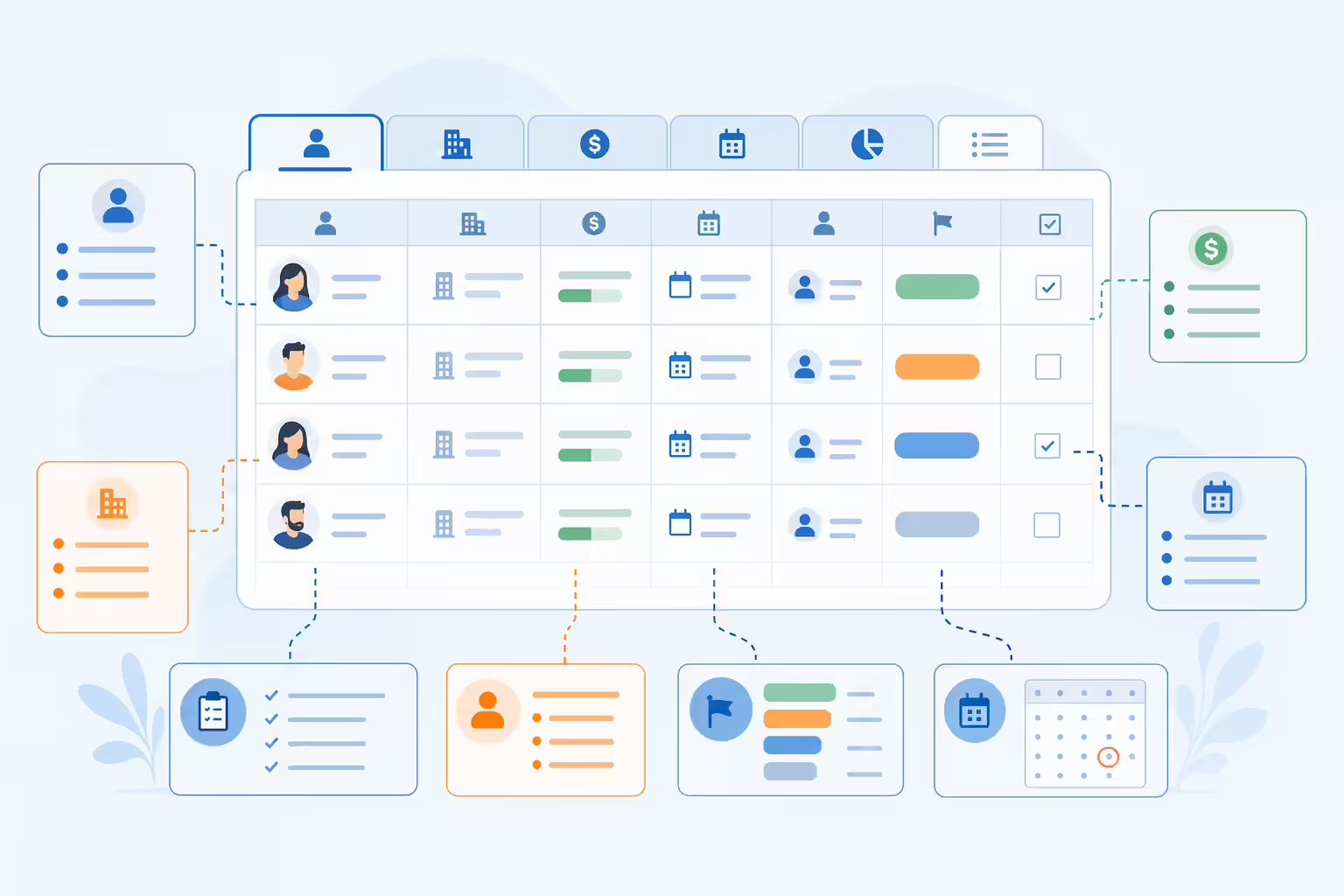
Start with these tabs:
| Tab | Purpose | Required fields |
|---|---|---|
| Contacts | People you sell to or support | Contact ID, first name, last name, email, phone, title, company ID, owner, status, source |
| Companies | Accounts or organizations | Company ID, company name, website, industry, size, owner, lifecycle stage |
| Deals | Opportunities in the pipeline | Deal ID, company ID, contact ID, deal name, stage, owner, source, value, expected close date, next follow-up, status |
| Activities | Sales touches and notes | Activity ID, date, contact ID, deal ID, type, owner, outcome, next step, next follow-up |
| Dashboard | Summary for review | Open pipeline, deals by stage, overdue follow-ups, new leads, closed deals |
| Lists | Controlled dropdown values | Owners, stages, statuses, lead sources, activity types, outcomes |
Use IDs because names change. A Contact ID such as CON-0012 is more reliable than matching on “John Smith.” A Deal ID such as DEAL-0041 makes it easier to connect activities to opportunities later.
Keep the stages simple at first:
| Stage | Meaning |
|---|---|
| New | Needs first review or assignment |
| Contacted | Someone has reached out |
| Qualified | The lead fits your sales criteria |
| Meeting Set | A meeting or demo is scheduled |
| Proposal | Pricing, scope, or next terms are under review |
| Closed Won | The deal converted |
| Closed Lost | The opportunity is no longer active |
The goal is not to copy an enterprise CRM. The goal is to make every sales review answer the same questions: who owns the deal, what happened last, what happens next, and when will someone follow up?
How to Build a Google Sheets CRM Step by Step
Open a new Google Sheet and create the tabs above. Then build the structure in this order.
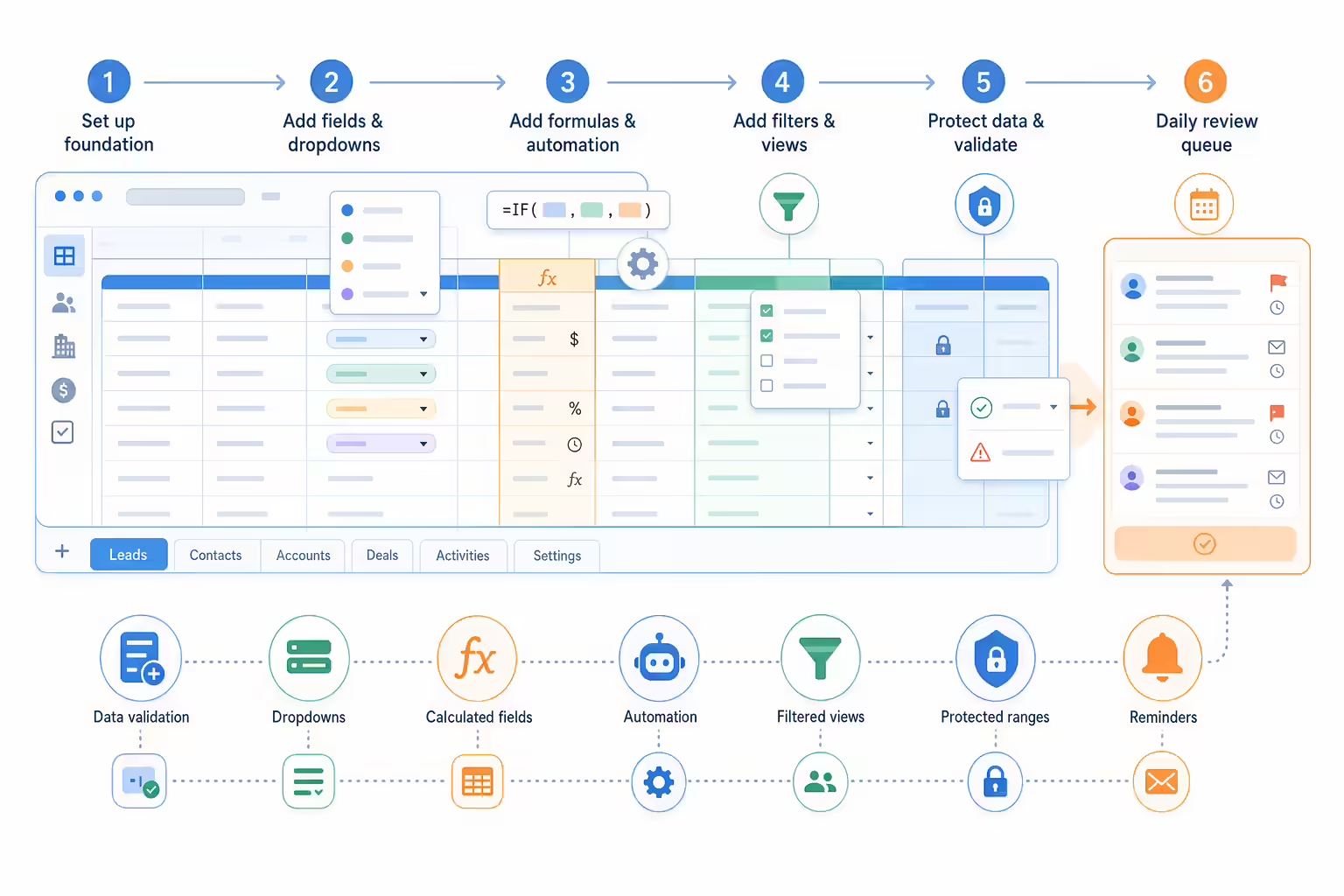
Create controlled dropdowns first
Use the Lists tab to store values for owners, deal stages, activity types, outcomes, and statuses. Then use Google Sheets data validation to make dropdowns in the working tabs. This prevents one rep from typing Qualified, another typing Qual, and another typing qualified lead.
Suggested dropdown lists:
| List | Values |
|---|---|
| Deal stage | New, Contacted, Qualified, Meeting Set, Proposal, Closed Won, Closed Lost |
| Activity type | Call, SMS, Email, Meeting, LinkedIn, Note |
| Activity outcome | Connected, Left Voicemail, No Answer, Replied, Meeting Booked, Not Interested |
| Status | Active, Paused, Closed |
| Lead source | Website, Referral, Outbound, Event, Partner, Paid Search, Other |
Freeze the header row and use filters
Freeze row 1 on every tab. Turn on filters so reps can quickly view their own records, overdue follow-ups, or deals in a specific stage. Google documents the FILTER function and basic filtering for Sheets, and both are useful for CRM views.
Add formulas for working views
Create a Dashboard tab and use formulas that summarize active work.
Open pipeline value:
=SUMIFS(Deals!H:H, Deals!E:E, "<>Closed Won", Deals!E:E, "<>Closed Lost")Overdue follow-ups:
=FILTER(Deals!A:J, Deals!I:I<TODAY(), Deals!J:J="Active")Deals by stage:
=QUERY(Deals!A:J, "select E, count(A), sum(H) where J = 'Active' group by E label count(A) 'Deals', sum(H) 'Value'", 1)Rep activity this week:
=QUERY(Activities!A:I, "select F, count(A) where B >= date '"&TEXT(TODAY()-7,"yyyy-mm-dd")&"' group by F label count(A) 'Activities'", 1)Use formulas as working aids, not as a substitute for process. If the underlying fields are inconsistent, the dashboard will be inconsistent too.
Protect formulas and shared lists
Protect the dashboard formulas, ID columns, and controlled lists so everyday editing does not break the system. Give most users permission to edit working rows, not formula cells or lookup lists.
Add a daily sales review view
Create a filter view or dashboard block named Today. It should show:
- Deals where next follow-up is today or earlier.
- New leads without an owner.
- Deals with no activity in the last 7 days.
- Meetings set for the next 7 days.
- Open proposals.
This is the view a rep or manager should open first. A CRM nobody reviews is just a database.
A Copyable Google Sheets CRM Template Structure
Use this as your starter structure. Create each tab with the columns shown below.
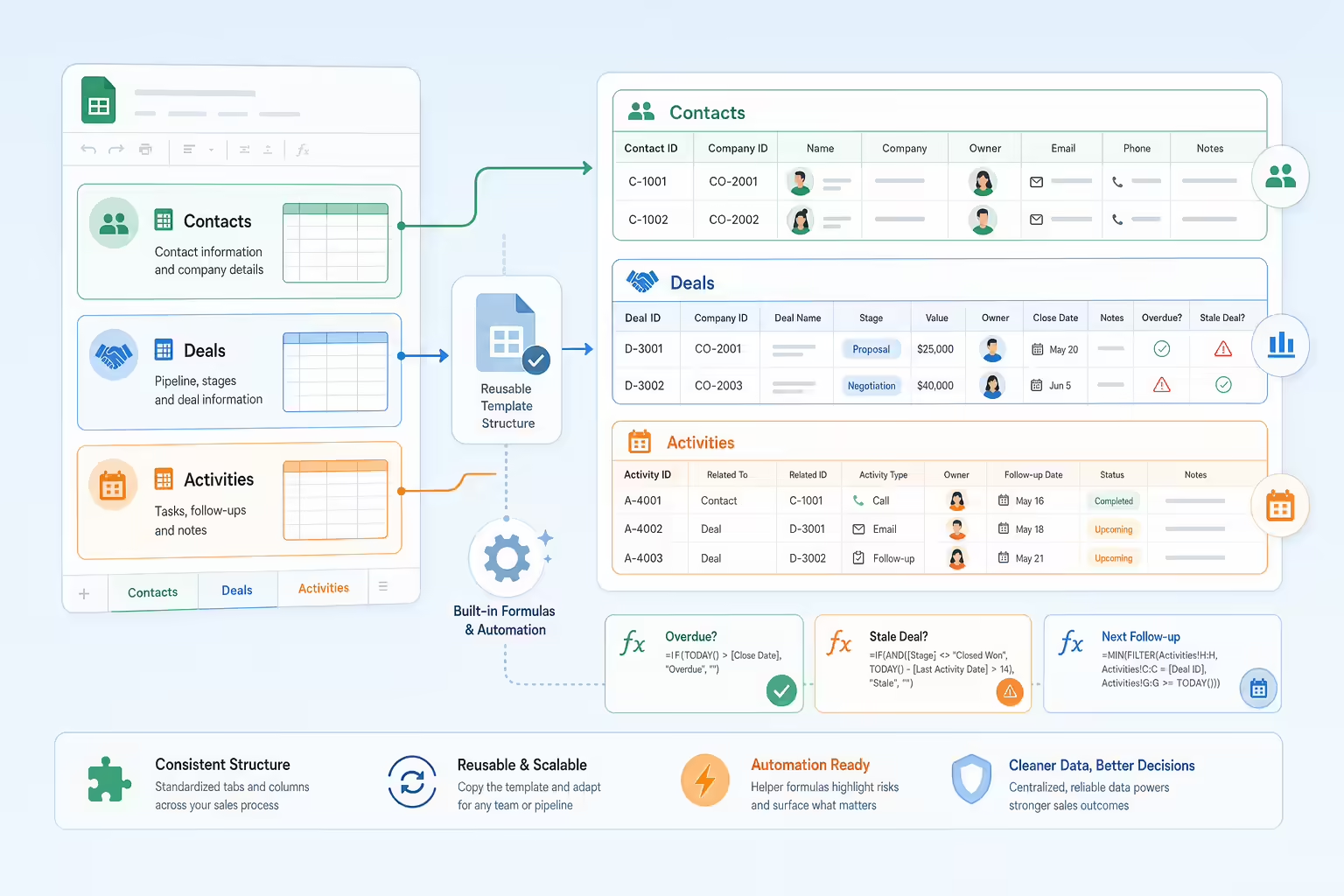
Contacts columns:
- Contact ID
- First Name
- Last Name
- Phone
- Title
- Company ID
- Owner
- Status
- Source
- Created Date
- Last Activity Date
- Next Follow-up
- Notes
Deals columns:
- Deal ID
- Company ID
- Contact ID
- Deal Name
- Stage
- Owner
- Source
- Value
- Next Follow-up
- Status
- Expected Close Date
- Last Activity Date
- Lost Reason
- Notes
Activities columns:
- Activity ID
- Date
- Contact ID
- Deal ID
- Type
- Owner
- Outcome
- Next Step
- Next Follow-up
- Notes
Add a simple overdue flag in the Deals tab:
=IF(AND(I2<TODAY(), J2="Active"), "Overdue", "")Add a stale deal flag:
=IF(AND(L2<TODAY()-7, J2="Active"), "No activity in 7 days", "")Add a phone normalization helper if phone numbers come in mixed formats:
=REGEXREPLACE(E2, "[^0-9]", "")These are not the only possible formulas. They are starter controls that make spreadsheet CRM data easier to review.
How to Track Sales Activity Without Losing Context
The hardest part of a spreadsheet CRM is not the contact list. It is the activity history.
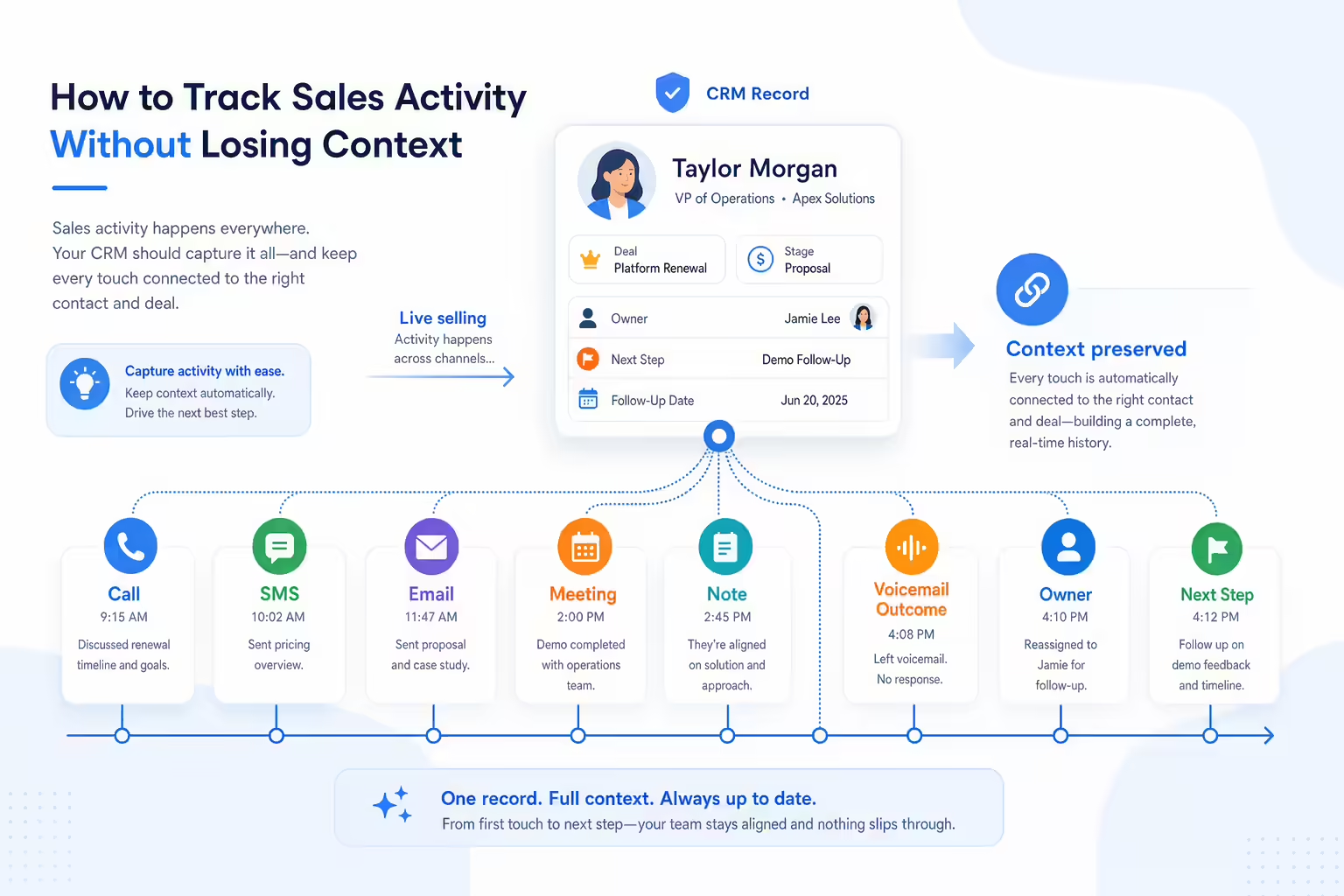
Contacts and deals are relatively static. Sales activity changes all day. Reps call, text, email, leave voicemail drops, book meetings, write notes, and move deals across stages. If those touches are not logged consistently, the sheet stops reflecting reality.
At minimum, the Activities tab should answer:
- Who was contacted?
- Which deal was the activity tied to?
- What channel was used?
- What was the outcome?
- What is the next step?
- Who owns it?
- When should the next follow-up happen?
Use dropdowns for activity type and outcome. Use required fields for owner, contact ID, date, and next step. Avoid vague notes like “followed up.” A better entry is “Called, left voicemail, send SMS tomorrow if no reply.”
If the team uses the sheet during live selling, keep data entry short. Reps will not fill 20 fields after every call. Track the few fields that directly affect follow-up quality and pipeline visibility.
Automations That Make a Spreadsheet CRM More Useful
Google Sheets CRM automation should start small. Add one automation at a time and test it with a copy of the sheet before touching the live version.
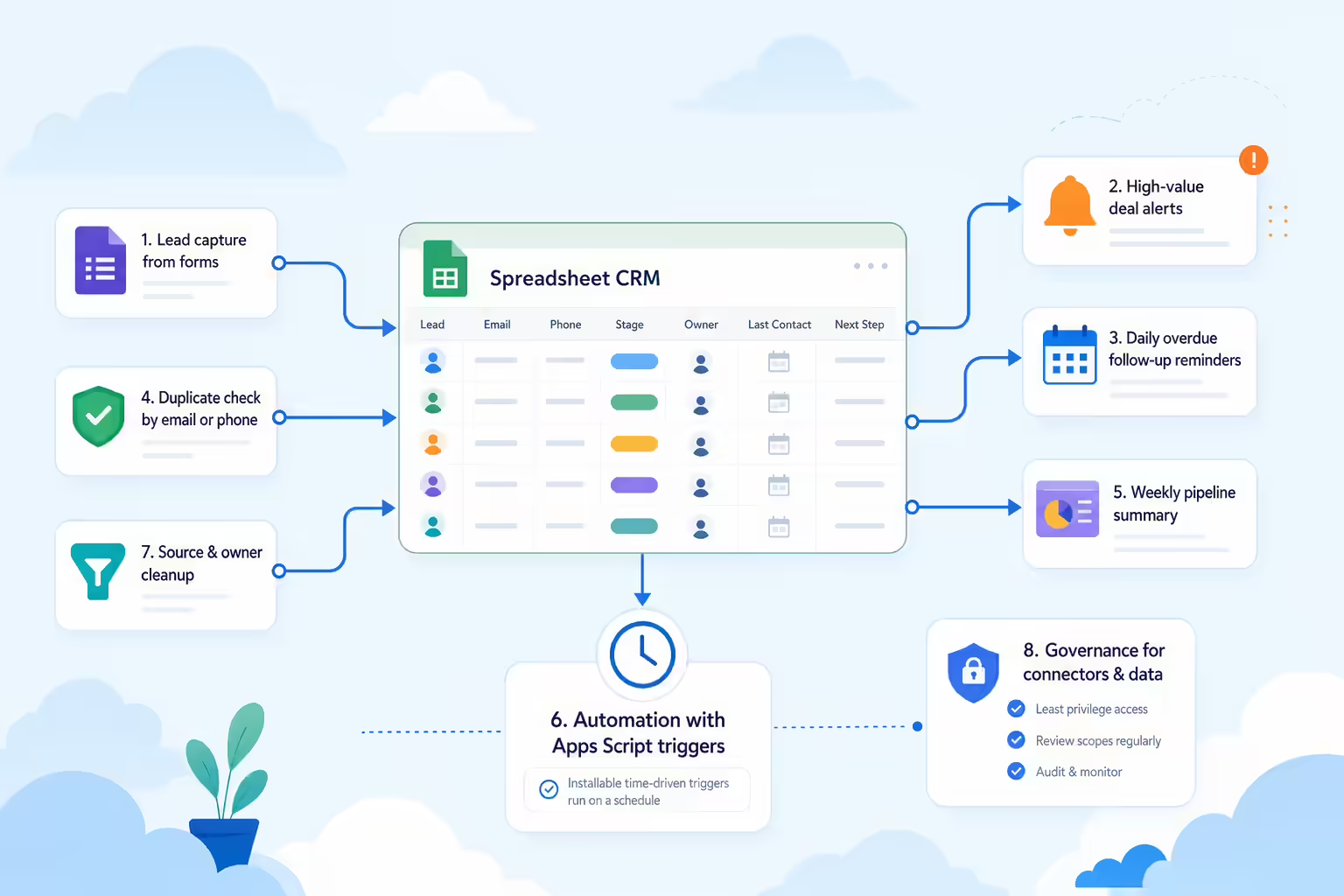
Useful starter automations include:
- Lead capture from Google Forms into a new-leads tab.
- Email notifications when a high-value deal is created.
- Daily reminders for overdue follow-ups.
- Duplicate checks based on email or normalized phone number.
- Weekly pipeline summaries for managers.
- Source and owner cleanup rules.
Apps Script can run functions automatically through installable triggers, including time-driven triggers. Google documents those triggers for scripts that need to run on a schedule. A simple daily reminder script can scan a sheet for overdue follow-ups and send the owner an email. Use this only after testing permissions and access, because scripts run under a Google account and may need review by your Workspace admin.
Example starter script:
function sendOverdueFollowupDigest() {
  const ss = SpreadsheetApp.getActive();
  const sheet = ss.getSheetByName('Deals');
  const rows = sheet.getDataRange().getValues();
  const today = new Date();
  const overdue = rows.slice(1).filter(row => {
    const nextFollowup = row[8];
    const status = row[9];
    return nextFollowup instanceof Date && nextFollowup < today && status === 'Active';
  });

  if (!overdue.length) return;

  const body = overdue.map(row => `${row[0]} - ${row[3]} - owner: ${row[5]}`).join('n');
  MailApp.sendEmail('sales-manager@example.com', 'Overdue CRM follow-ups', body);
}
Source: Google Apps Script installable triggers.
For non-technical teams, no-code connectors — such as a missed call recovery bot built in Zapier — can be easier than scripts. The tradeoff is governance. Before connecting a spreadsheet CRM to outside tools, decide who owns the connection, who can edit it, and how errors will be reviewed.
Where Google Sheets CRM Starts to Break
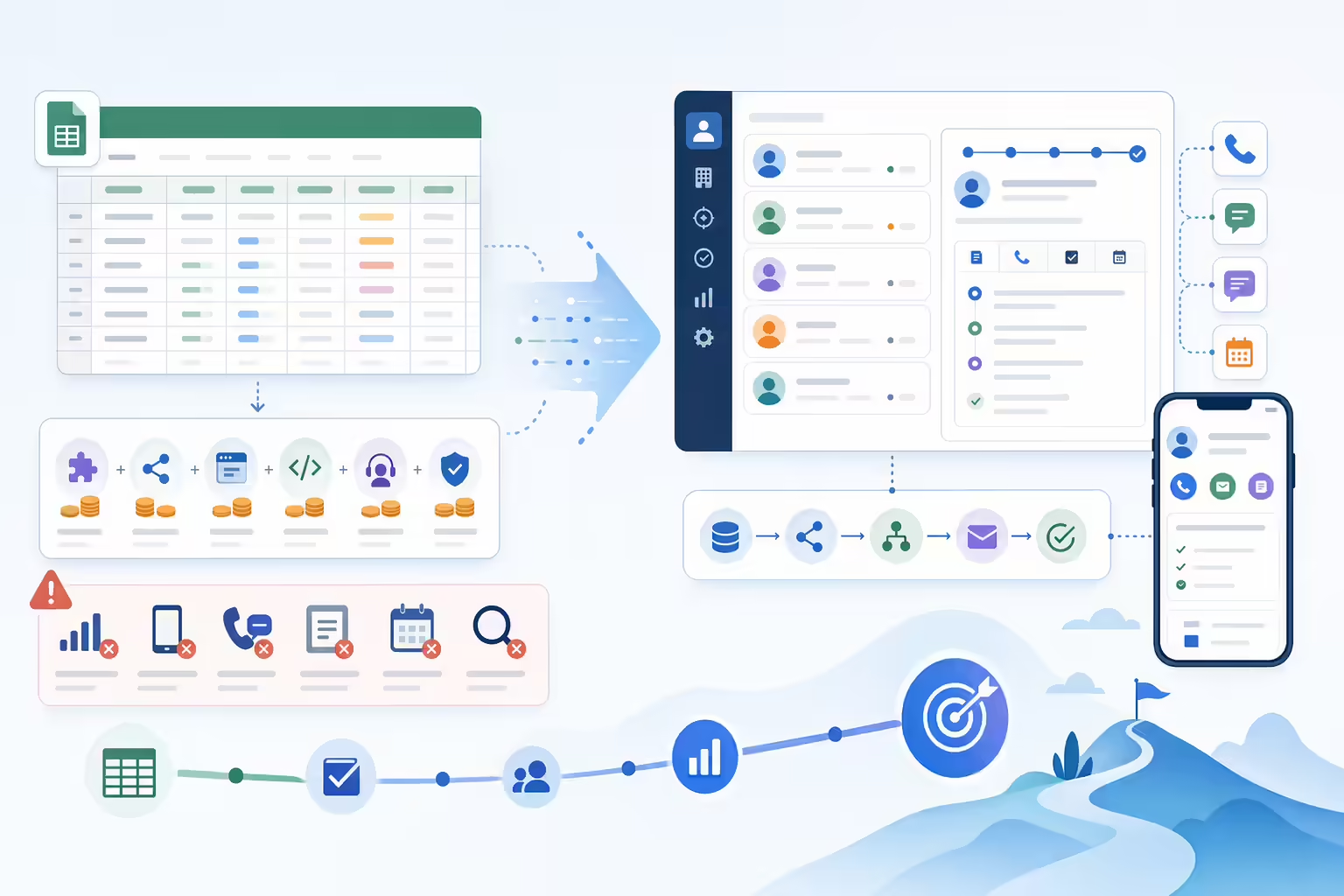
A spreadsheet CRM works until the cost of manual upkeep becomes higher than the value of flexibility.
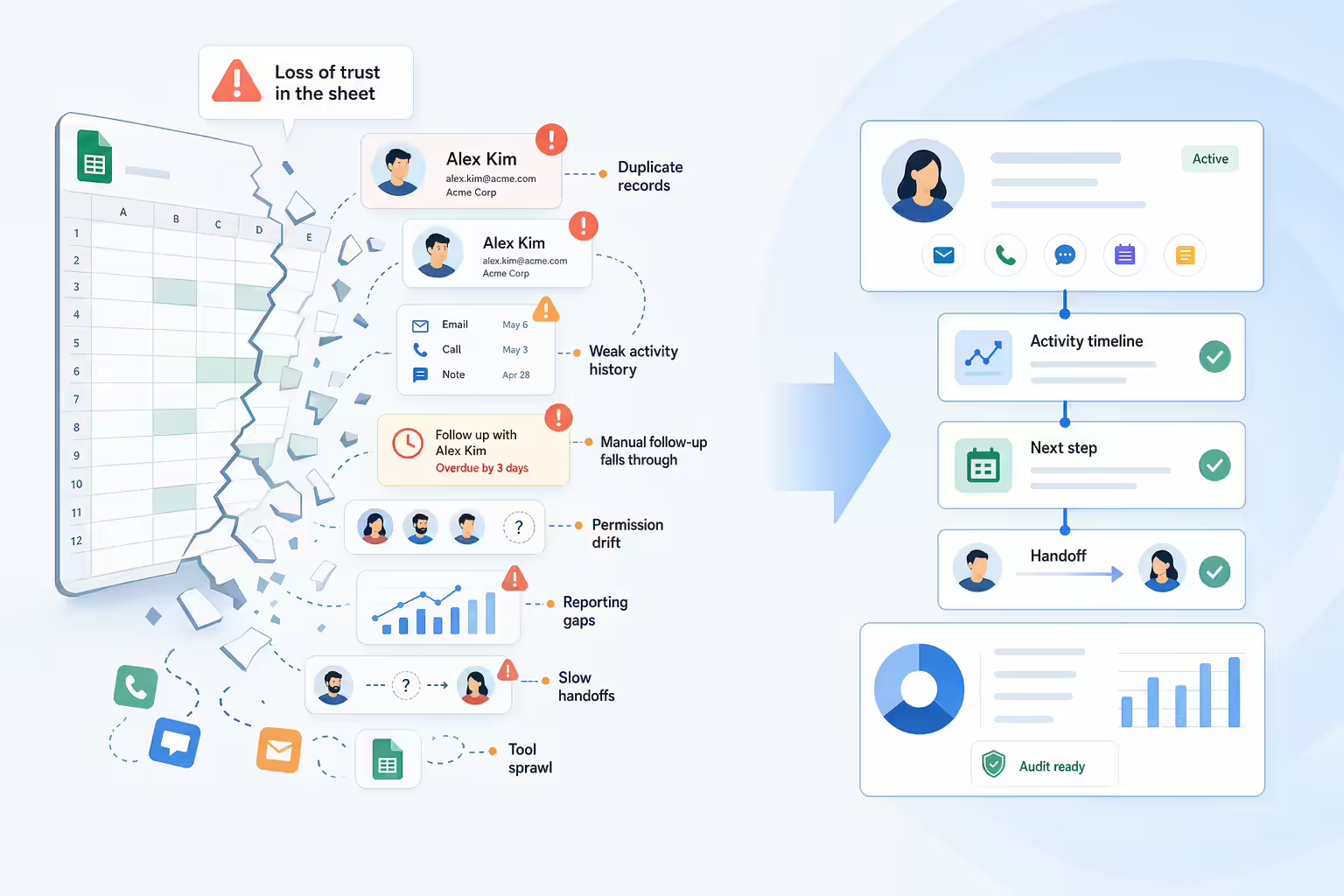
Common breaking points include:
| Breaking point | What it looks like |
|---|---|
| Duplicate records | The same person appears under multiple names, emails, or phone formats |
| Weak activity history | Calls, texts, notes, and meetings are missing or logged inconsistently |
| Manual follow-up | Reps depend on memory or personal reminders instead of shared workflow |
| Permission drift | Too many users can edit formulas, columns, stages, or dashboards |
| Reporting gaps | Managers cannot trust activity totals, conversion rates, or forecast views |
| Slow handoffs | SDRs, AEs, support, and management do not share the same customer context |
| Audit concerns | Sensitive customer data sits in broad-access spreadsheets |
| Tool sprawl | The team copies data between Sheets, email, dialers, calendars, and the CRM |
The biggest warning sign is not spreadsheet size. It is trust. Once managers stop trusting the sheet, reps stop updating it, and the system decays quickly — at which point a real sales dashboard becomes the only way to restore pipeline visibility.
When to Move From Google Sheets to CRM and Sales Engagement Tools
Move beyond Google Sheets when the sales workflow needs reliable execution, not just record keeping.

Use this decision matrix:
| Need | Sheets is usually enough | Move to CRM or sales engagement |
|---|---|---|
| Team size | One owner or a very small team | Multiple reps, managers, or handoffs |
| Activity logging | Occasional notes | Calls, texts, meetings, dispositions, and outcomes every day |
| Follow-up | Manual reminders work | Missed follow-ups cost revenue |
| Reporting | Simple counts and filters | Forecasting, rep performance, source reporting, stage conversion |
| Data controls | Low-risk shared data | Role-based access, admin controls, audit needs |
| Workflow | Basic filters | Assignment, routing, sequences, and automated next steps |
| Calling and SMS | Low volume | Reps need click-to-call, SMS, voicemail, and call notes in workflow |
This is where Kixie can fit naturally. A team may still use Sheets for planning, imports, or ad hoc analysis, but the sales system should move into a CRM and a communication workflow that logs real customer activity. Kixie’s bi-directional CRM page describes CRM logging for sales activity, and its PowerDialer page covers high-volume calling workflows. For a broader view of connected revenue workflows, see Kixie’s guide to integrating Kixie with your CRM.
The point is not that every small team should buy tools immediately. The point is to be honest about the moment when a spreadsheet stops helping sellers and starts becoming an extra admin system.
How Kixie Fits After a Spreadsheet CRM
A spreadsheet CRM can show who needs a follow-up. It usually cannot make the follow-up workflow reliable by itself.
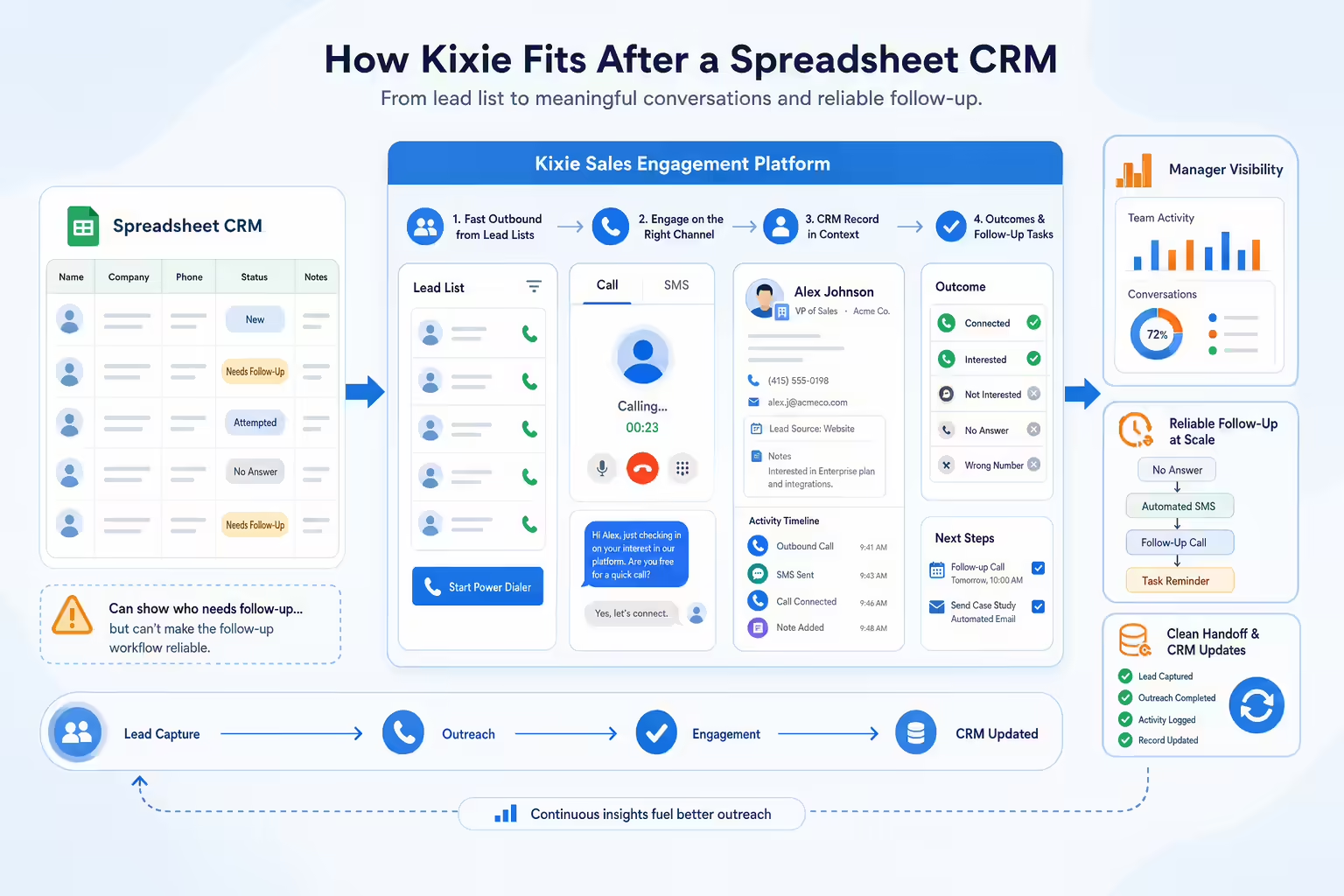
Sales teams that move beyond Sheets often need:
- Calls and texts tied to the right CRM record.
- Faster outbound workflows for lead lists.
- Clear outcomes after each conversation.
- Follow-up tasks that do not depend on rep memory.
- Manager visibility into activity quality and volume.
- A cleaner handoff between lead capture, outreach, and CRM updates.
Kixie is most relevant after the team has a defined sales process and needs to execute it through calling, SMS, and CRM-connected activity workflows. If you are still testing whether a market exists, a spreadsheet may be enough. If you already know the market and need reps to work leads consistently, a spreadsheet alone is usually not enough.
For related Kixie reading, review 5 affordable alternatives to a lead follow-up spreadsheet and what sales engagement means.
Google Sheets CRM FAQ
Is Google Sheets CRM free?
Google Sheets is available through Google accounts and Google Workspace plans, but the total cost depends on how your team uses it. Add-ons, connectors, CRM apps, scripts, admin support, and paid Workspace features can add cost. Treat Sheets as a low-friction starting point, not automatically a zero-cost CRM system.
Is Google Sheets a good CRM for mobile sales teams?
It can work for light updates, but it is not ideal for high-volume mobile selling. Small edits are possible, but live call notes, outcomes, follow-up scheduling, and record lookup can become slow on a phone. Mobile-heavy teams usually need a CRM or sales engagement workflow built for field use.
Does Google have a CRM tool?
Google Sheets is not a dedicated CRM. Google Workspace Marketplace lists many Sales and CRM apps that work with Workspace products. That means teams can build a lightweight CRM in Sheets or connect Workspace to dedicated CRM tools, depending on their process.
Is a spreadsheet CRM secure enough?
It depends on your data, access rules, and admin controls. If the sheet contains sensitive customer data, lock down sharing, protect ranges, limit editors, and review connected apps. If you need role-based permissions, audit trails, or strict customer data controls, use a dedicated CRM with the right admin model.
What is the best Google Sheets CRM setup?
The best setup is the simplest one your team will actually maintain. Start with Contacts, Companies, Deals, Activities, Dashboard, and Lists tabs. Use dropdowns, filters, protected formulas, and a daily follow-up view. Add automation only after the basic data stays clean for a few weeks.
When should you stop using Google Sheets as a CRM?
Stop using Sheets as the primary CRM when reps miss follow-ups, activity history is incomplete, managers distrust reports, multiple people overwrite data, or the team spends more time maintaining the sheet than selling. At that point, move the system of record into a CRM and connect sales engagement workflows around it.
Final Takeaway
Google Sheets can be a strong starter CRM when the sales process is simple, the team is small, and everyone follows the same rules. Build separate tabs, use dropdowns, protect formulas, track activity, and create a daily follow-up view.
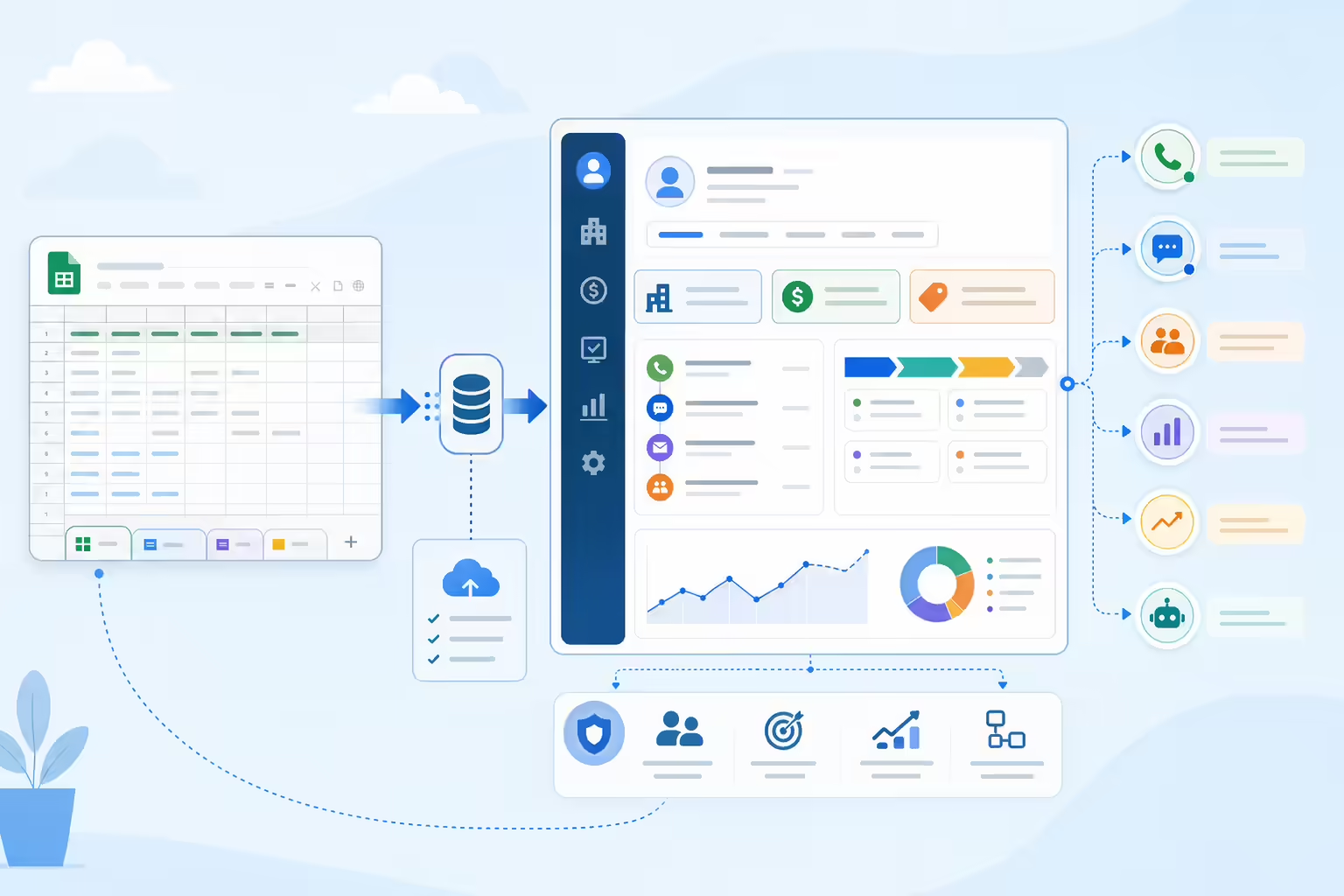
The moment your team needs reliable call and SMS history, sales activity reporting, handoffs, assignment, forecasting, and automated follow-up, treat the spreadsheet as a staging tool rather than the CRM. Keep Sheets for analysis and imports. Put the customer record and sales workflow in systems designed for repeatable revenue work.
Ready to close more deals with Kixie?
See how Kixie's AI-powered tools can transform your sales and support operations.
Start Free Trial