

 HubSpot
 Salesforce
 Zoho
Zoho
 HighLevel
 Pipedrive
 ActiveCampaign
 Slack
Slack
 Zapier
TL;DR: This article details how to solve GoHighLevel's (GHL) lack of a native "Teams" feature. This structural gap creates two primary failures: 1) A reporting failure, as GHL only allows performance tracking by individual user, not by team, forcing managers to manually export and sum data. 2) An operational failure, as GHL cannot route leads to a group, only to a specific rep, causing uneven lead distribution and slow speed-to-lead. The guide explains that GHL's core architecture was not designed for hierarchical sales teams and the existing Microsoft Teams integration is for calendar scheduling, not sales management. The solution is to integrate Kixie as a "Team Layer". This is achieved by using Kixie Ring Groups to create the "Team" entity, using Kixie's Automatic Call Distribution (ACD) to intelligently route inbound calls based on GHL tag or deal value data, and using GHL Workflows to add new outbound leads to team-based Kixie PowerLists. Finally, Kixie's Live Leaderboards and Reporting Dashboards provide the missing "Team" filter to see aggregated, historical call and SMS performance metrics for the group.

The "Glass Ceiling" Every GoHighLevel Sales Manager Hits
You’re not imagining it. And you are not alone.
You invested in GoHighLevel (GHL) for its powerful all-in-one promise. You built your funnels, set up your automations, and centralized your client communication. But the moment your sales organization grew beyond a few reps, you hit a functional brick wall: GoHighLevel has no "Teams" feature.
This isn't a minor missing setting. It is a fundamental, structural gap that leaves sales managers and agency owners completely blind. If you've ever searched the GHL community forums, you know this is the platform's most glaring high-intent pain point.
You see managers stating it's "impossible to analyze conversion rates, performance, or productivity by team". You see the "URGENT" requests from users who can't believe a platform built for sales "does not cater for sales teams". You'll find frustrated agency owners whose "dashboards and reporting tools aren't fit for purpose" , with some calling it "insane that we don't have this".
This single missing feature creates two cascading failures that hamstring any scaling sales org:
-
The Reporting Failure: Because GHL's user management is completely flat, you can only pull performance by individual users. This forces managers to export data to spreadsheets and manually sum up calls, conversions, and pipeline value just to understand which team is performing.
-
The Operational Failure: You cannot intelligently route leads to a group. This results in "uneven lead distribution," where leads are assigned to a single, specific rep. If that rep is on a call, at lunch, or just having a slow day, that hot lead rots, and your "speed to lead," the single most important metric in sales, is destroyed.
The "GoHighLevel Paradox" and Why This Feature Will Never Come
Sales managers are often frustrated because GoHighLevel (GHL) lacks a native 'Teams' feature for sales management. This frustration is compounded by the "GHL Paradox." Users see GHL roll out a constant stream of new, wide-ranging features like Communities or AI enhancements. Yet, this foundational, "URGENTLY" requested feature for sales teams has been ignored for years.
This is not an oversight; it's a reflection of GHL's core architecture. The platform's user structure was built for two use cases: a single user (like a solopreneur) or an agency managing separate client subaccounts. It was never designed for the complex, hierarchical needs of a sales manager managing multiple teams within a single subaccount.
Adding "Teams" wouldn't be a simple update; it would require a fundamental re-engineering of the platform's database. This "mile-wide, inch-deep" approach is GHL's greatest strength and its most profound weakness.
The "Microsoft Teams" Red Herring
To make matters worse for managers looking for a sales team solution, a desperate search in GHL's help center for "teams" leads you to an article about "Microsoft Teams Integration". Let's be unequivocally clear: This integration has nothing to do with sales teams. It is a simple calendar connection for scheduling video-conferencing links. It does not build, manage, route, or report on your sales reps.
Stop Migrating, Start Integrating
GoHighLevel's core limitation, its lack of a native 'Teams' feature, is what forces scaling businesses to have the painful "we've outgrown GHL" conversation. It's why they begin the expensive, time-consuming, and disruptive process of migrating to platforms like HubSpot or Salesforce.
But there is a better way.
The solution is not to migrate, but to integrate. You need to bolt-on a dedicated "Team Layer" that is built for sales.
This guide will show you how to use Kixie to build the "Teams" feature that GHL is missing. Using a native, 30-minute integration , Kixie provides the three missing pillars of sales team management, all of which plug directly into your existing GHL subaccount.
-
How to Build Teams: Using Kixie Ring Groups.
-
How to Manage Teams: Using intelligent lead routing (ACD) and GHL Workflow automation.
-
How to Report on Teams: Using Kixie’s Live Leaderboards and Reporting Dashboard.
How to Build Your "Team" in GHL
GoHighLevel (GHL) doesn't have a native 'Teams' feature, so the first step is to create the "Team" object that its database lacks. In this framework, a Kixie Ring Group is not just a call-forwarding tool; it becomes the functional "container" for your team. By creating a "Sales Team" Ring Group, you are, for all operational and reporting purposes, creating the "Sales Team" entity you've been missing.
Step-by-Step Guide: Creating Your First "Team" (Ring Group)
Before you begin building your 'Team' (which will be a Kixie Ring Group), you must have a Kixie manager account and connect it to your GHL Admin subaccount. This is a one-time, 60-second process that uses GHL's "LeadConnector" login to establish the native integration.
Step 1: Navigate to Ring Groups
In your Kixie Manager Dashboard, go to Manage → Inbound → Ring Groups on the left-side menu. Click the "+ ADD" button.13
Step 2: Name Your Team
In the "Group Name" field, enter the name of your team. This is a critical step for reporting.
- Example: "Sales Team A," "Onboarding Team," or "Support Team".13
- This name will now appear as a filter option in your reporting dashboards.
Step 3: Add Your Agents to the Team
Under the "Ring Groups" setup on the left of the pop-up, you will see a section to add agents. Under "Select Agent," choose the GHL users (who are now Kixie agents) that you want to be on this team.13
Step 4: Choose Your Team's Routing Logic
This is the step that immediately solves GHL's "uneven lead distribution" problem.1 You must select a "Ring Type," which dictates how calls are distributed to the agents on this team 13:
- Simultaneous: Rings all agents on the team at the same time. The first person to answer takes the call. This is perfect for "all hands on deck" inbound lead queues.
- Linear: Rings agents one by one in a fixed order (Position 1, then Position 2, etc.).
- Linear Round Robin: This is the solution most sales managers are looking for. It rings agents one by one, but it remembers who answered the last call and starts the next call with the next agent in line. This is the true, fair, and automated lead distribution that GHL natively lacks.
Step 5: Assign a "Team" Phone Number
To make this team functional, it needs a number. Go to Manage → Numbers in your Kixie dashboard. Find a spare number (or add a new one) and use the pencil icon to edit it. In the routing options, select "Group" and choose the "Sales Team A" Ring Group you just created.13
In just five minutes, you have accomplished what is impossible in native GHL. You have built a functional "Sales Team" entity, complete with intelligent, automated lead distribution rules.
How to Manage & Route Leads to Your Teams
Now that your "Team" objects exist (as Kixie Ring Groups, which function as your teams), you need to automatically feed them leads from GHL. A truly intelligent system does two things: it routes inbound callers based on who they are, and it routes outbound leads based on their source.
Inbound Lead Routing (Automatic Call Distribution)
A key challenge in GoHighLevel (GHL) is that it can't intelligently route *inbound* calls to specific teams based on lead value or status.
The Scenario: A high-value lead, who is already in your GHL pipeline with a deal value of $10,000, calls your main company number. In GHL, this call is just a call. It goes to a generic queue, and your VIP lead waits in line with everyone else.
The Solution: Use Kixie's Automatic Call Distribution (ACD) to read GHL data in real-time and route the call intelligently.
Kixie's integration does more than just log activities to GHL; it queries GHL's database in the milliseconds a call is connecting. This allows a manager to build a sophisticated triage system that is impossible in GHL. You can create rules that "read" GHL tags, deal values, or contact owners and route the call to the correct team (Ring Group) before an agent ever answers.
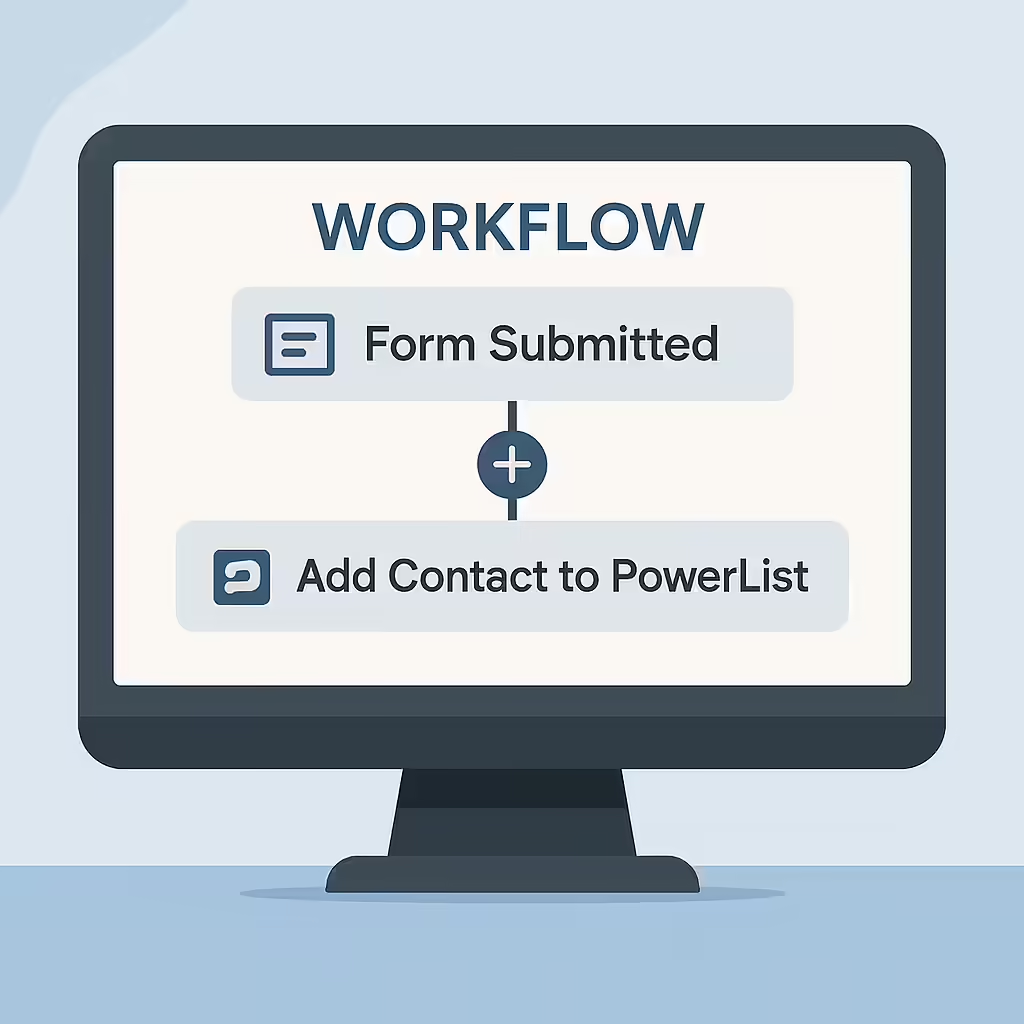
Step-by-Step Guide: Routing by GHL Tag or Deal Value
Step 1: In your Kixie dashboard, navigate to Inbound Routing.
Step 2: Add a new rule for your main inbound phone number.
Step 3: Define the Condition. This is where the magic happens. Set the condition to read GHL data.
- Example 1:
If GHL Contact Tag = 'Hot Lead' - Example 2:
If GHL Deal Value > $5,000
Step 4: Choose the Destination. Set the destination to the Ring Group you created in Part 1 (e.g., "Sales Team A").
You have now created an automated VIP lane. High-value leads and "Hot Leads" tagged in GHL are automatically routed past the main queue and sent directly to your senior sales team. This is the operational intelligence that separates amateur sales orgs from professional ones.
Outbound Lead Routing (GHL Workflows + Kixie PowerLists)
The other major challenge is routing new *outbound* leads. In native GHL, leads are often assigned to a single user, creating a "speed to lead" bottleneck.
The Scenario: A new lead fills out a GHL form. The "speed to lead" clock starts ticking. In native GHL, your workflow can "Assign to User". But what if that one user is on a demo? The lead rots.
The Solution: Use a GHL Workflow to instantly add that new lead to a team-based Kixie PowerList, making it available to your entire team to dial.
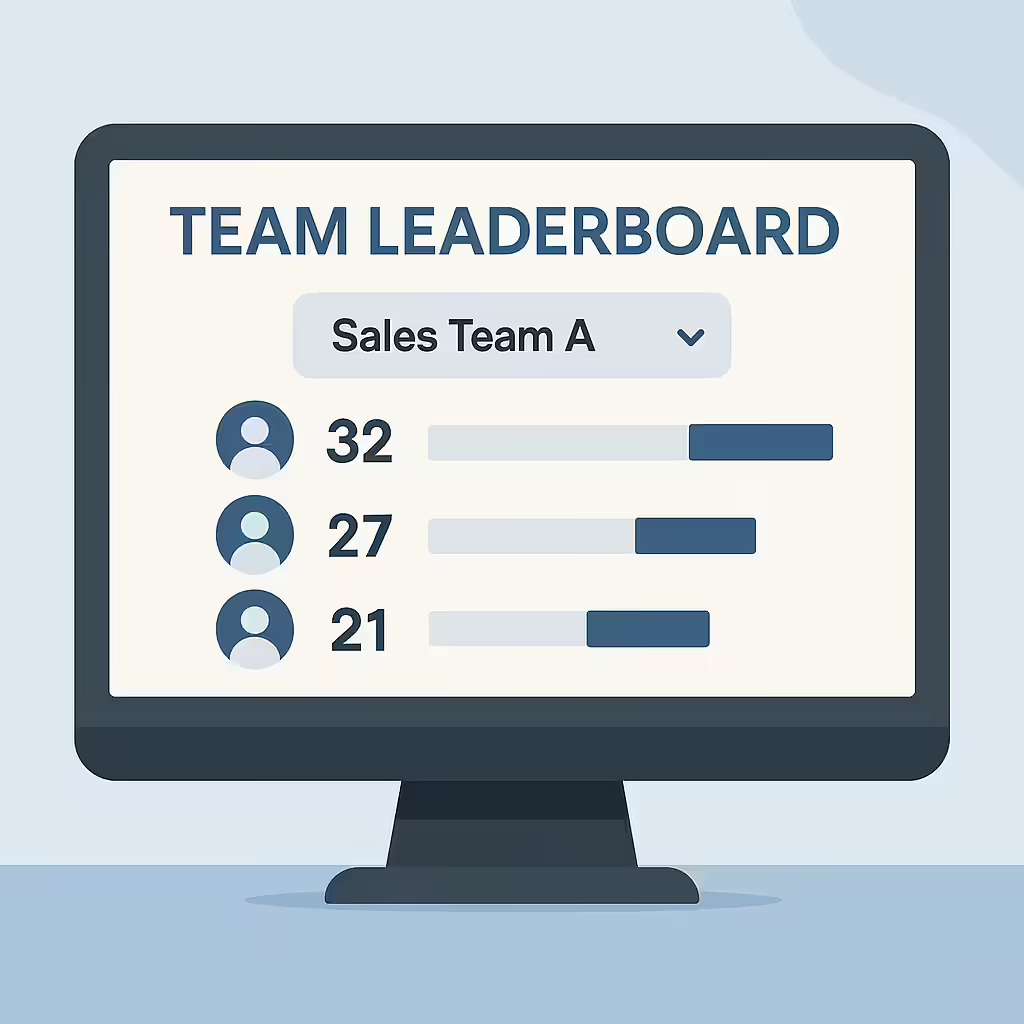
Step-by-Step Guide: GHL Workflow to Kixie PowerList
Step 1: In Kixie, create a new PowerList (e.g., "New GHL Form Leads"). In the PowerList settings, assign your "Sales Team A" Ring Group to this list. This means anyone on that team can access and dial this list.
Step 2: In your GHL subaccount, navigate to Automation → Workflows and create a new workflow.
Step 3: Set the Trigger for the workflow (e.g., "Form Submitted: 'Contact Us Form'").
Step 4: Click the "+" to add an action. Once Kixie is integrated, you will see a native Kixie action in this menu.
Step 5: Choose the action "Add Contact to PowerList." From the dropdown menu, select your "New GHL Form Leads" list.
This simple workflow solves one of the biggest bottlenecks in sales. The moment a lead submits a GHL form, their contact info is added to a shared, team-wide dialer list. Every rep on "Sales Team A" sees the new lead and can call them. The first available rep grabs it, ensuring your "speed to lead" is measured in seconds, not hours.
How to Report & Monitor Team Performance
One of the most significant gaps in GoHighLevel (GHL) is its inability to report on sales performance by *team*. You can only pull data for individual users, forcing managers to export and manually calculate team metrics. This section solves the "impossible to analyze by team" and "reporting not fit for purpose" complaints for good.
Real-Time Management (Kixie Live Leaderboards)
The Problem: GHL is blind to the present. A manager cannot see what is happening right now. Who is on the phone? Who is idle? Who is making the most calls today?
The Solution: Kixie's Live Sales Leaderboards. This provides a real-time, gamified view of all agent activity, designed to be put up on an office TV to foster friendly competition and drive activity.
Step-by-Step Guide: Building Your Team Leaderboard
Step 1: In your Kixie dashboard, navigate to Live → Leaderboards.
Step 2: Click "New Display" at the top right of the page.
Step 3: The CRUCIAL Filter. Click the "Teams" dropdown menu. Here, you will see the "Sales Team A" Ring Group you created in Part 1. Select it.
Step 4: Select the metrics you want to display for that team: "Connections," "Answered Calls," "Missed Calls," "Total Call Duration," etc..
In seconds, you have a live, auto-refreshing dashboard that shows you exactly how your team is performing right now. You can instantly see who is leading the pack and who is lagging, giving you the real-time data you need to manage.
Historical Reporting (Kixie Reporting Dashboard)
The Problem: This is the core complaint from the GHL forums. GHL lacks "group metrics" and "sales reporting... for sales teams". You cannot get a simple answer to "How many calls did the Sales Team make last week?"
The Solution: Kixie's Reporting Dashboard has the "Team" filter that GHL users have been begging for.
Step-by-Step Guide: Pulling a Team Performance Report
Step 1: In your Kixie dashboard, navigate to Reporting → Agent Reports or Agent Summary.
Step 2: The "Aha!" Moment. At the top of the report, you will see a series of filters. The first one is "Team".
Step 3: Click the "Team" filter and select "Sales Team A" from the dropdown.
The entire report instantly updates.
You are now looking at a clean, aggregated report of all call and SMS metrics for that specific team. You can see "Total Outgoing Calls," "Total Connections," "Average Talk Time," and "SMS Volume" by team. You can set the date range and see how busy that team has been, allowing you to make data-driven decisions about performance and staffing.
This single filter solves GHL's biggest and most frustrating reporting limitation.
The "GoHighLevel vs. Kixie + GHL" Showdown
Let's visualize the "before and after" of integrating Kixie to solve GoHighLevel's (GHL) native team management limitations. This is the direct comparison of what you can and cannot do.
| Capability | GoHighLevel (Default) | Kixie (Integrated with GHL) |
|---|---|---|
| View Performance by Team? |
No. (Only by individual user) |
Yes. (Filter "Agent Reports" & "Agent Summary" by Team) |
| Team Call Volume Report |
No. (Must export & manually sum) |
Yes. (Available in "Agent Reports" with Team filter) |
| Team SMS Volume Report |
No. |
Yes. (Available in "SMS Reports" with Team filter) |
| Live Team Leaderboard |
No. |
Yes. ("Live Leaderboards" can be filtered by Team) |
| Fair Lead Distribution |
No. (Manual or basic user round-robin) |
Yes. (Ring Group "Linear Round Robin") |
| Route Leads by GHL Tag/Value |
No. |
Yes. (ACD rules read GHL data to route to Ring Groups) |