TL;DR: The HubSpot Salesforce call sync polls for new data every 15 minutes and triggers an instant sync when a call, meeting, note, task, sales email, or form is logged on a contact. It needs a dedicated Salesforce integration user license, and only call metadata syncs natively (timestamp, duration, outcome, notes); call audio recordings require custom CRM API scripts, HubSpot Operations Hub Professional workflows, or an IPaaS like Make, Tray.io, or Workato. Most VoIP vendors gate the Salesforce connection behind premium tiers (Aircall Professional at $50 per user per month plus a $9 AI add-on, Dialpad Pro at $25 per user per month with AI included, RingCentral Advanced at $25 per user per month, with RingCX power-dialer features starting at $65 per user per month). For a 10-person outbound team that works out to roughly $590 per month on Aircall versus $250 per month on Dialpad or RingCentral. Sales reps spend about 19% of their hours on manual CRM entry, and automation recovers around 6 hours per week per rep with a reported $5.44 return per dollar spent. Common problems include duplicate records from email mismatches, inclusion-list gaps blocking pushes to Salesforce, picklist value mismatches that fail validation, and ownership resets when HubSpot users are not mapped to a Salesforce user.
Key Points
- Research suggests that sales representatives spend approximately 19% of their working hours manually updating customer relationship management systems.
- A HubSpot Salesforce call sync operates bidirectionally, generally polling for new data every 15 minutes while also utilizing instant triggers for specific activities.
- Activating this integration requires a dedicated Salesforce integration user profile and careful property mapping to prevent data errors.
- Market-leading telephony tools, including Aircall, Dialpad, and RingCentral, offer native integrations but require specific premium pricing tiers to enable CRM synchronization.
- Call audio files do not natively sync between the two platforms through the standard integration, typically requiring custom API scripts or integration platforms.
The Role of Automation in Modern Sales Integrating your telephony software with your primary databases removes the physical act of logging calls, taking notes, and updating time stamps. When a HubSpot Salesforce call sync is established, data flows smoothly between the marketing platform and the sales database. This ensures that every dial, connection, and voicemail is recorded without human intervention.
The Impact on Data Integrity Manual data entry inevitably leads to gaps in reporting. When sales representatives forget to log a call or input incorrect information, management loses visibility into pipeline health. An automated sync creates a verifiable, timestamped record of all outreach activities. This level of data integrity allows revenue operations teams to accurately measure metrics like speed to lead, call-to-connect ratios, and overall representative productivity.
The Scope of the Guide This report details the operational realities of syncing call data between HubSpot and Salesforce. It covers the administrative costs of manual data entry, the technical mechanics of the native integration, step-by-step setup procedures, and a financial comparison of third-party telephony providers. It is written for revenue operations leaders, sales development managers, and systems administrators who need a factual framework for implementing automated call logging.
Administrative Costs of Manual Call Logging

Before examining the technical configuration of a HubSpot Salesforce call sync, it is important to understand the operational problems it solves. Sales representatives are hired to communicate with prospects, build relationships, and close revenue. However, structural inefficiencies often force them into administrative roles.
Time Cost of Manual Call Logging
Sales representatives spend an estimated 19% of their working hours updating customer relationship management (CRM) tools. For a standard 40 hour work week, this equates to roughly 7.6 hours lost to administrative tasks. Some studies suggest the problem is even more severe, with 43% of sales professionals reporting that they spend between 10 and 20 hours each week strictly on note-taking and CRM data entry.
Inside sales representatives make an average of 33 calls per day. If a representative spends three minutes after every call manually searching for the contact record, logging the call outcome, typing notes, and creating a follow-up task, they waste 99 minutes per day on basic data entry. Over a month, this administrative burden severely limits their capacity to generate pipeline.
Low CRM Adoption and Data Decay
When systems require too much manual input, user adoption drops. Research indicates that only 47% of sellers use their CRM regularly. When representatives fail to log their calls, the data inside the CRM quickly becomes obsolete.
Data decay is a massive challenge for revenue operations teams. B2B contact data decays at a rate of roughly 34% per year. People change jobs, companies rebrand, and phone numbers rotate. When call activities are not logged accurately, management cannot track which phone numbers are dead ends or which contacts have bounced. In fact, 41% of salespeople state that outdated information in their CRM system is one of their biggest daily challenges, and 80% of CRM data is considered generally inaccurate.
Productivity Gains From Call Logging Automation
Automating the call logging process directly addresses these administrative bottlenecks. When teams implement sales automation for manual tasks, they save an average of 6 hours per week per representative.
This time savings translates directly into increased output. Sales representatives using automated tools make 23% more calls per day. Furthermore, teams utilizing sales force automation software see a 14.5% overall increase in productivity. Beyond simply making more dials, automation helps deals move through the pipeline more efficiently. Representatives who automate their follow-up processes close deals up to 20% faster on average.
From a financial perspective, eliminating manual entry yields a strong return on investment. Organizations using sales automation see an average return of $5.44 for every dollar spent on these tools.
How the HubSpot Salesforce Call Sync Works
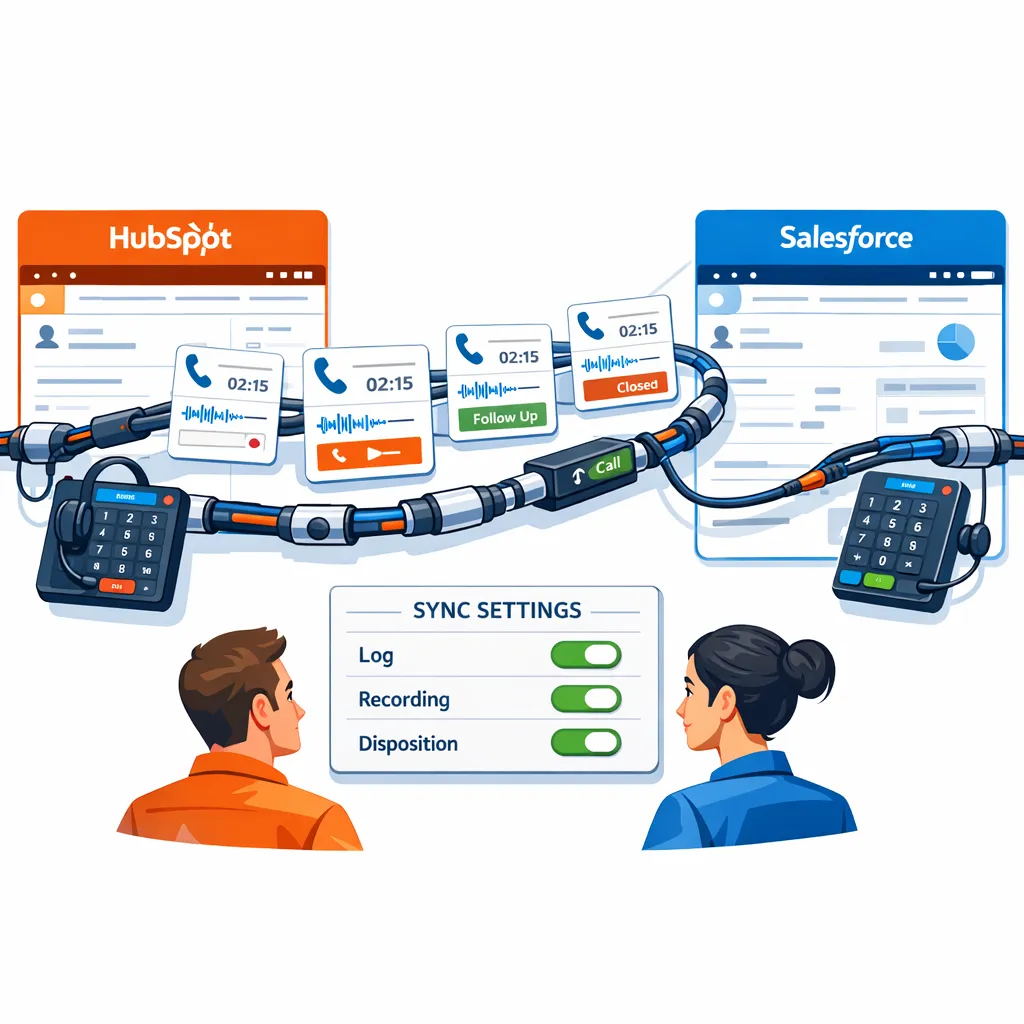
To automate call logging successfully, administrators must understand how HubSpot and Salesforce communicate. The integration connects HubSpot, which is frequently used as an inbound marketing and outbound sales engagement hub, with Salesforce, the primary database of record.
The Salesforce Integration User Bridge
The connection between the two systems relies on a specific Salesforce user profile known as the integration user. This user acts as the bridge that allows HubSpot to access, view, and modify data inside Salesforce.
Because Salesforce charges per user license, creating an integration user requires dedicating a paid Salesforce license to this sync. This is a necessary expense. If the integration user profile cannot view or edit a specific record in Salesforce, HubSpot will not be able to view or edit that record either. For example, if your integration user does not have permission to view Lead records, no calls logged in HubSpot will ever sync to those Leads in Salesforce.
A standard best practice for revenue operations teams is to clone the Salesforce System Administrator profile and parse down the permissions specifically for the HubSpot user. This ensures the integration has the required Application Programming Interface (API) access, the ability to download AppExchange packages, and the authority to modify all relevant objects like accounts, contacts, leads, and opportunities.
Data Polling and Call Sync Timings
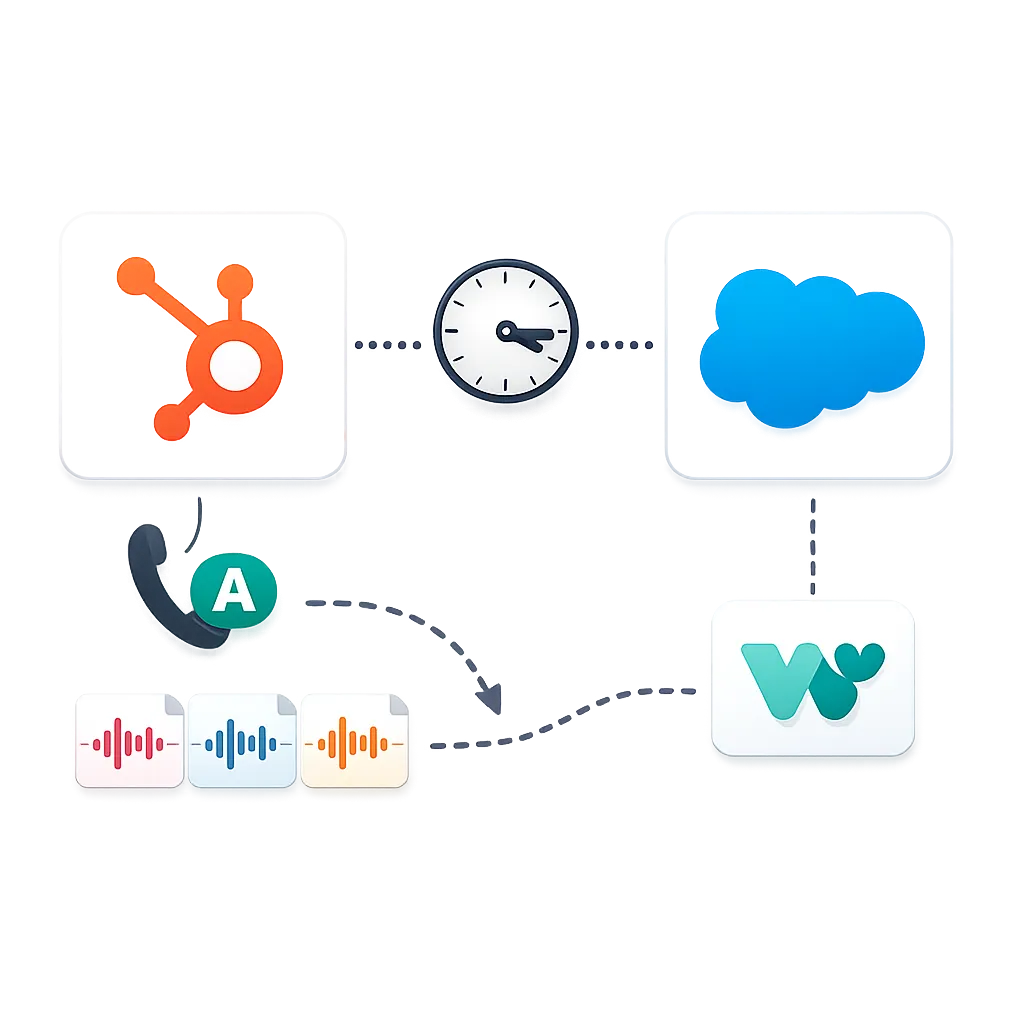
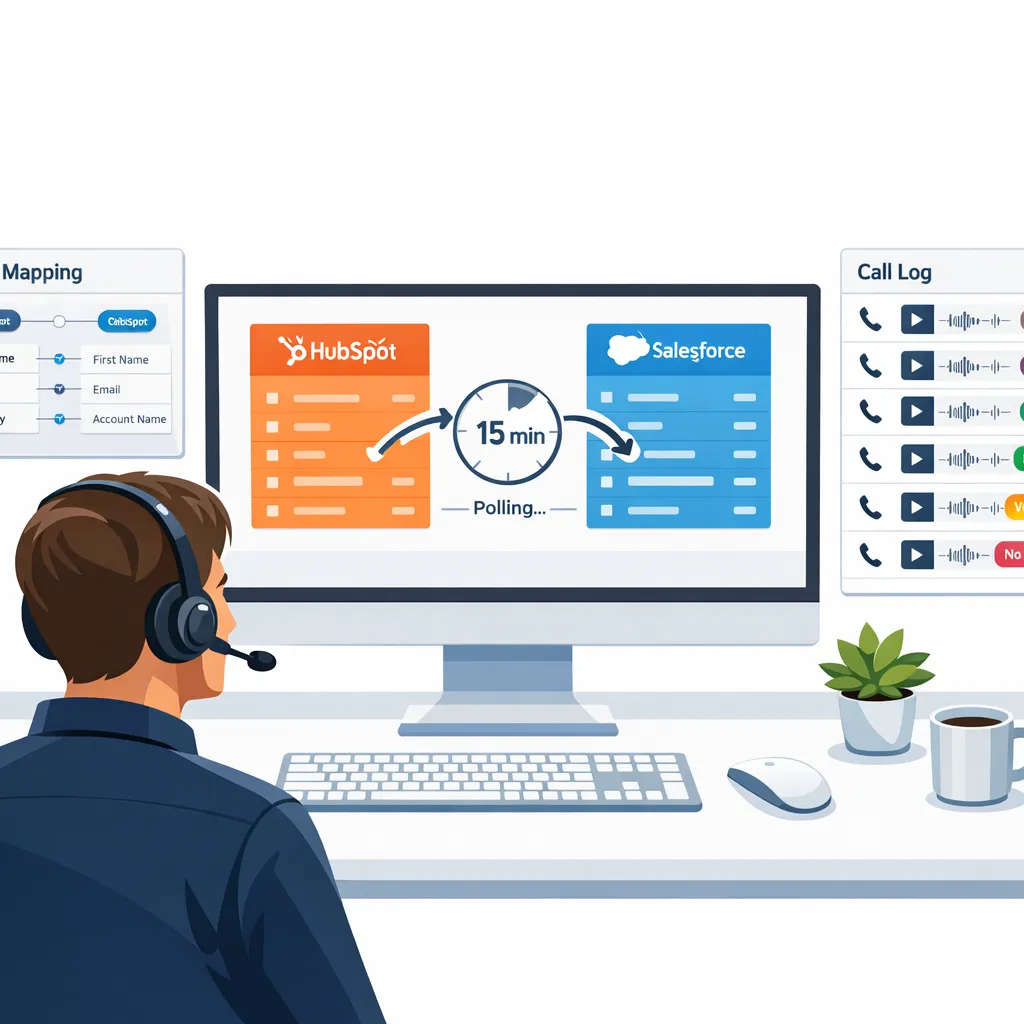
Many administrators assume that the HubSpot Salesforce integration is a constant, real-time stream of data. In reality, the systems follow strict polling intervals. The HubSpot Salesforce connector initiates a sync to check for new information approximately every 15 minutes.
This means that if a representative logs a call in Salesforce, it may take up to 15 minutes for that call record to appear on the corresponding HubSpot timeline. Administrators tracking speed-to-lead metrics must account for this 15 minute delay when building automated workflows.
Instant Call Sync Triggers
While the general database polling occurs every 15 minutes, there are specific actions that will trigger an immediate sync between the two platforms. Understanding these triggers is vital for a HubSpot Salesforce call sync.
The following events will force an automatic sync if the activity sync settings are enabled:
- A call is made to a contact.
- A meeting is scheduled with a contact.
- A note is created on a contact record.
- A task is created on a contact record.
- A sales email is sent, opened, or clicked by a contact.
- A form is submitted by a contact.
Because making a call acts as an instant trigger, telephony data generally moves between the systems much faster than standard text field updates. However, it is important to note that updates to Salesforce formula fields will never trigger a sync. If your call routing relies on a Salesforce formula field to assign lead ownership, the sync will not recognize the change until a separate, mapped field is updated.
Setting Up the HubSpot Salesforce Call Sync
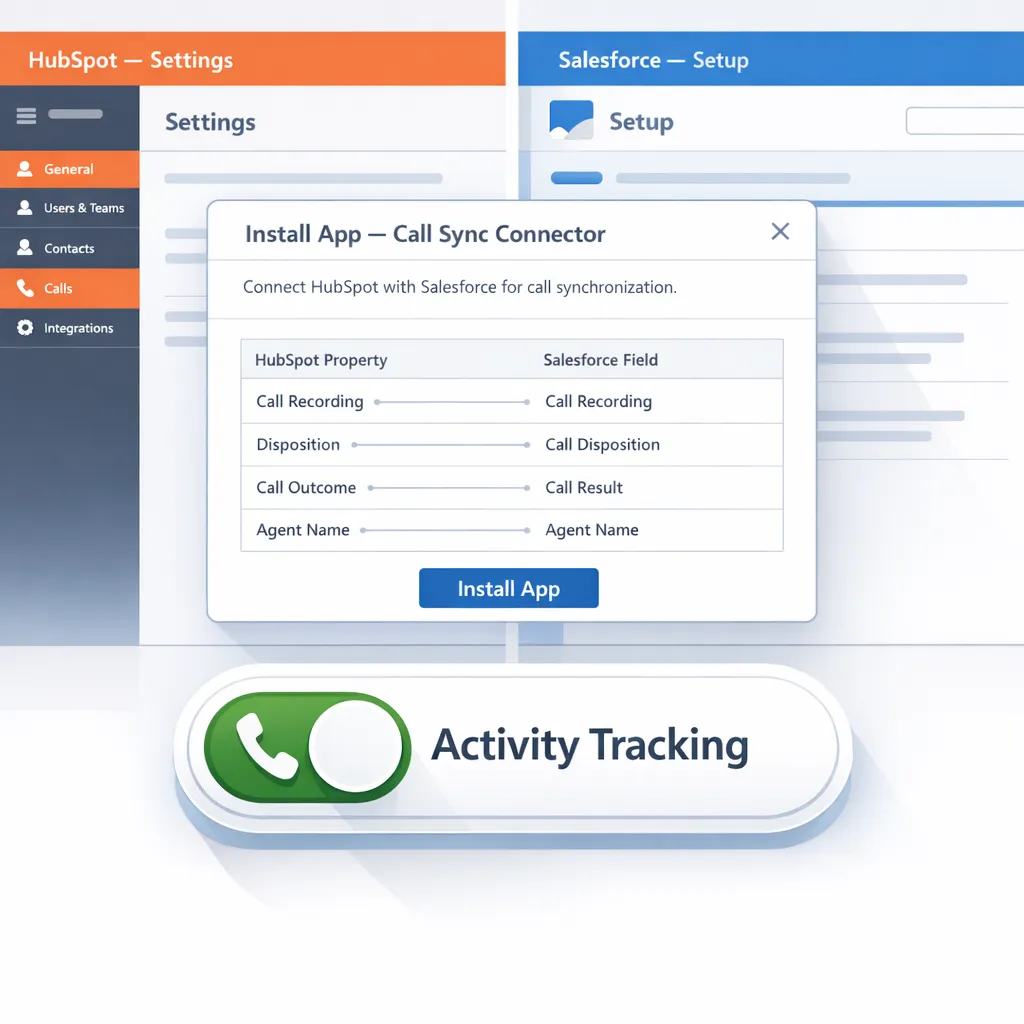
Configuring the activity and call sync requires administrative access in both HubSpot and Salesforce. The process involves installing the application, mapping data properties, and enabling activity tracking.
Installing the HubSpot Salesforce Integration
The process begins inside the HubSpot workspace. An administrator must go to the HubSpot Marketplace, locate the Salesforce integration, and click install. The system will prompt the user to log into Salesforce using the credentials of the dedicated integration user profile.
During this initial setup, administrators must choose how data will flow. HubSpot automatically creates mappings between standard HubSpot properties and Salesforce fields. If a Salesforce field does not have a matching HubSpot property, HubSpot will create a new property automatically, labeled as created by an “Unknown user”.
Managing Inclusion Lists for the Sync
To prevent massive data bloat, most mature revenue operations teams utilize inclusion lists, also known as selective sync. By default, the integration will attempt to sync every single record between both systems. An inclusion list acts as a gatekeeper.
If a contact is not on the designated inclusion list, the record will not sync in either direction. This effectively pauses synchronization for that specific lead. When setting up a call sync, administrators must ensure that the criteria for the inclusion list encompasses all leads that sales representatives are actively dialing. If a representative calls a lead that falls outside the inclusion criteria, the call activity will be logged in HubSpot but will fail to push to Salesforce.
Configuring the Activity and Call Sync
To ensure that every dial logs automatically, administrators must explicitly turn on the Activity and Task sync features.
- Go to Integrations, then Connected Apps, and select Salesforce within HubSpot.
- Click on the Activities tab.
- Locate the specific tabs for Tasks, Emails, Calls, or Meetings.
- Toggle the sync switch to the “on” position for Calls.
Next, the administrator must configure the Timeline sync. This dictates how a HubSpot call appears once it reaches Salesforce.
- In the Timeline section, select the checkbox next to HubSpot events to sync them to Salesforce as tasks.
- Click the Salesforce Task Type dropdown menu.
- Select the appropriate task type, such as “Call”, so that Salesforce recognizes the incoming data correctly.
Once this is enabled, individual call records will sync when they are created or updated. It is important to note that turning on the sync will not automatically retroactively import all historical call data from Salesforce into HubSpot; it only applies to new or updated records.
Syncing Call Recordings and Audio Files
A common point of confusion during implementation is the synchronization of actual call audio recordings. Natively, the HubSpot Salesforce integration does not support the transfer of audio files or heavy call recording data. The native sync only transfers the metadata of the call, such as the timestamp, the duration, the user who made the call, and any typed notes.
If a revenue operations team requires the actual call recordings to live inside Salesforce alongside the activity record, they must invest in custom development. There are three primary workarounds for this limitation:
- Custom Integration Scripts: Developers can create a script using the CRM API to pull the call recordings from HubSpot and push them into the corresponding Salesforce records.
- Operations Hub Professional: Teams utilizing HubSpot’s Operations Hub Professional tier can build scheduled workflows that run custom coded actions daily to sync call engagements and recordings over to Salesforce.
- Integration Platforms: Administrators can use an IPaaS (Integration Platform as a Service) tool like Make, Tray.io, or Workato to map the audio file URLs between the two databases.
Telephony Tools That Sync With HubSpot and Salesforce
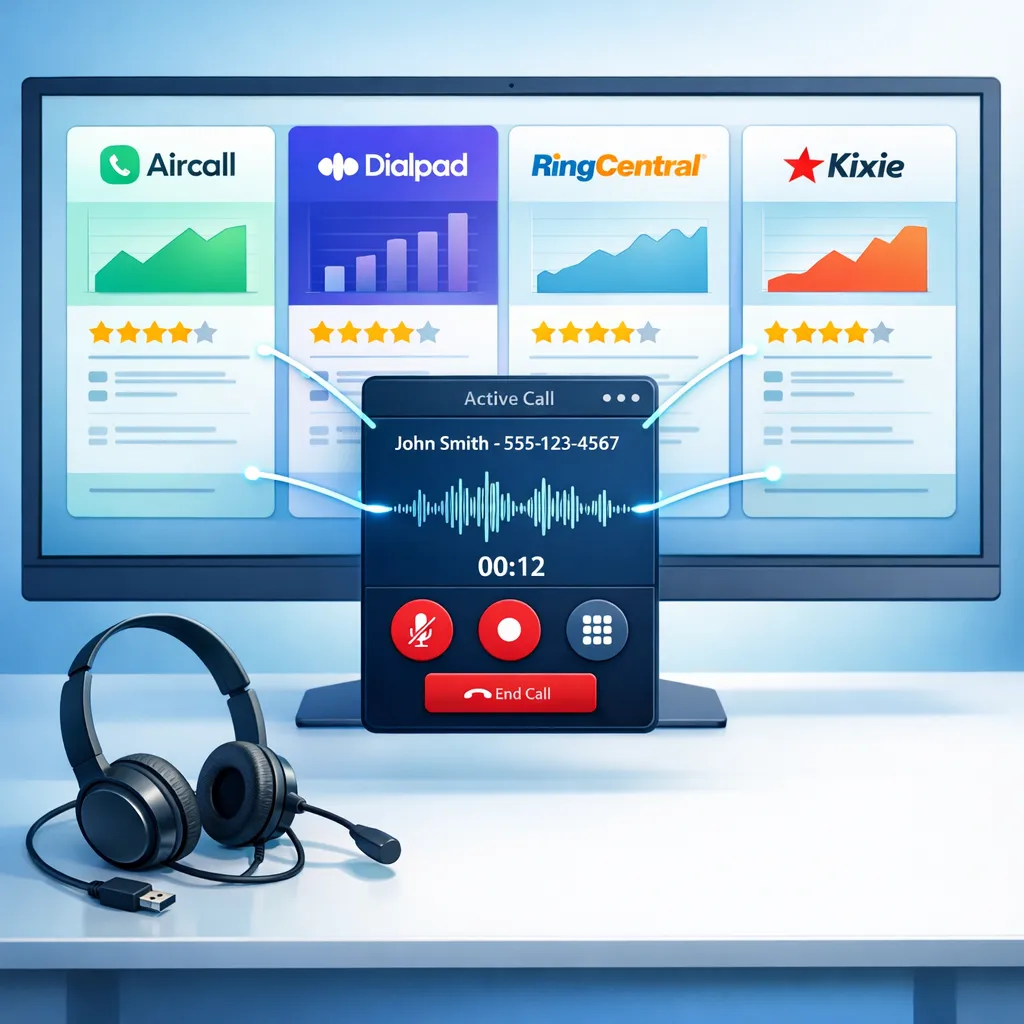
The native integration handles the data flow between the CRMs, but the actual phone calls are executed through third-party Voice over Internet Protocol (VoIP) and telephony software. Choosing the right telephony provider is critical, as the provider dictates the quality of the call, the presence of artificial intelligence features, and the depth of the integration.
Common platforms evaluated by sales teams include Aircall, Dialpad, RingCentral, and Kixie, each designed with different feature priorities. Each tool approaches the market with different pricing structures and technical capabilities.
Aircall for HubSpot and Salesforce Calling
Aircall is designed heavily around sales and support teams that work primarily out of their CRM systems. It functions as a dedicated voice platform and does not include native video conferencing capabilities.
Aircall is highly regarded for its deep, native integration with both HubSpot and Salesforce. Calls, texts, recordings, and activity logs sync automatically without requiring extensive custom configuration. Furthermore, Aircall supports automated SMS campaigns triggered directly through HubSpot workflows.
However, Aircall’s pricing structure requires careful review. The base Essentials plan costs $30 per user per month when billed annually, but requires a minimum of three seats, creating a $90 per month minimum commitment. Crucially for RevOps teams, the Salesforce integration is not included in the base plan. To connect Aircall to Salesforce, teams must upgrade to the Professional plan, which costs $50 per user per month. Additionally, Aircall’s artificial intelligence features, such as call summaries and transcripts, require a separate AI add-on that costs $9 per user per month.
Dialpad AI Calling With HubSpot and Salesforce
Dialpad positions itself as a unified communications platform built on artificial intelligence. The platform includes telephony, video calls, messaging, and AI-powered transcription directly out of the box.
Dialpad is highly appealing to teams that want immediate, live call insights. The platform provides real-time transcription, keyword tracking, and sentiment analysis during live calls. Unlike Aircall, Dialpad includes these AI features in its base pricing rather than charging for them as an add-on.
Pricing for Dialpad begins at a lower entry point. The Standard plan costs $15 per user per month when billed annually, and only requires a minimum of one user. However, just like Aircall, Dialpad gates its Salesforce integration behind a higher tier. To connect Dialpad to Salesforce, teams must upgrade to the Pro plan, which costs $25 per user per month and requires a minimum of three users.
RingCentral Calling for HubSpot and Salesforce
RingCentral is a massive, enterprise-grade unified communications platform. It combines business phone systems, video conferencing, and team messaging into a single, highly customizable solution. It boasts an app gallery of over 330 pre-built integrations, including robust connectors for both HubSpot and Salesforce.
RingCentral is generally better suited for large organizations that need complex call routing, global coverage, and strict IT administrative controls across multiple departments. While it handles outbound sales calls, it is less of a dedicated sales execution tool compared to Aircall or Dialpad.
RingCentral’s pricing begins with the Core plan at $20 per user per month annually. To access the Salesforce integration and automatic call recording, users must move to the Advanced plan at $25 per user per month. It is important to note that RingCentral separates its standard unified communications product (RingEX) from its true contact center product (RingCX). Teams needing advanced sales features like power dialers and queue management often have to upgrade to RingCX, which starts at $65 per user per month.
Telephony Vendor Comparison for HubSpot Salesforce Call Sync
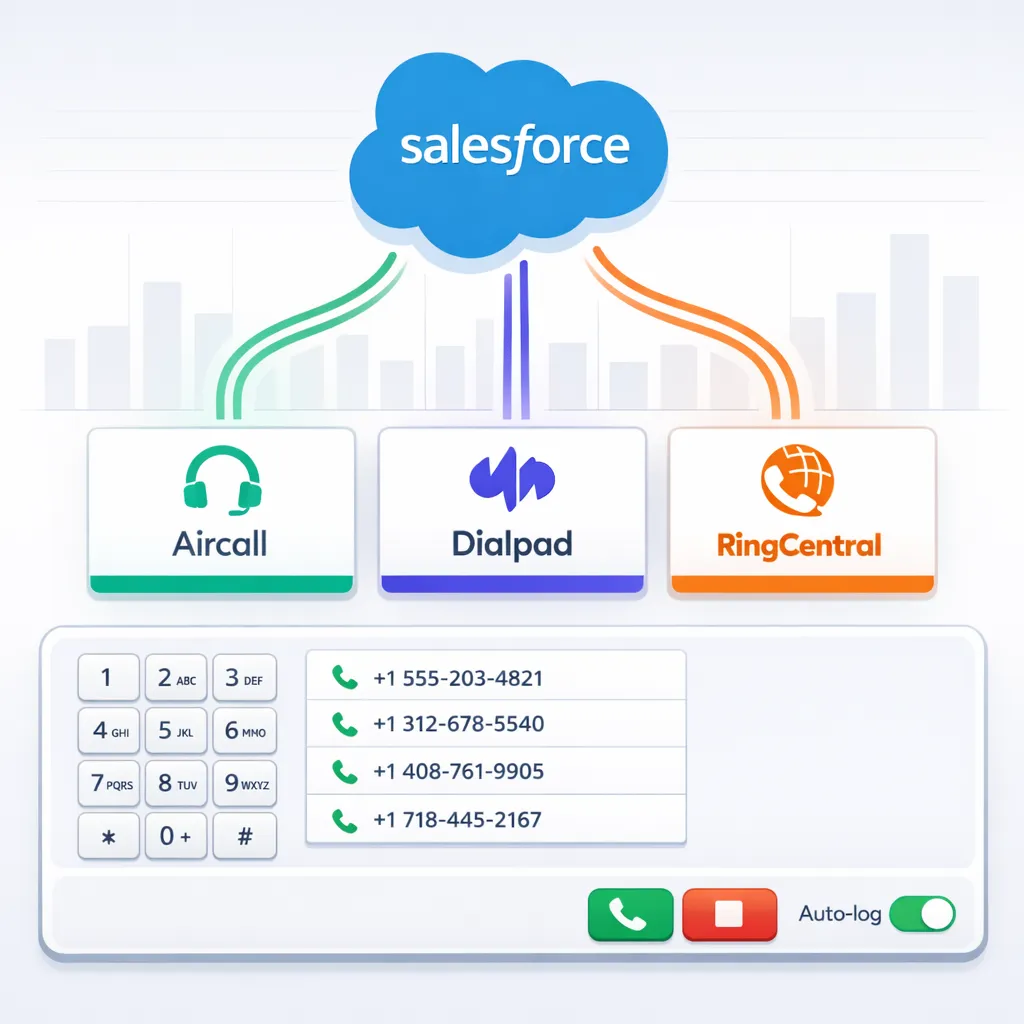
To assist in evaluating these tools, the following table compares Aircall, Dialpad, and RingCentral based on their base prices, the pricing required to access Salesforce integrations, user minimums, and core features.
| Feature / Metric | Aircall | Dialpad | RingCentral |
|---|---|---|---|
| Primary Focus | Voice-centric sales and support | AI-driven unified communications | Enterprise global communications |
| Base Starting Price (Annual) | $30 / user / month | $15 / user / month | $20 / user / month |
| Price for Salesforce Sync | $50 / user / month (Pro Plan) | $25 / user / month (Pro Plan) | $25 / user / month (Advanced) |
| Minimum Seat Requirement | 3 users | 1 user (3 for Pro) | 1 user |
| Native Video Calling | No | Yes (Up to 150 participants) | Yes (Up to 100 on Core) |
| AI Transcription/Summaries | Paid Add-on ($9 / mo) | Included in Base Price | Included (Varies by tier) |
| Power Dialer Included | Yes (on Pro Plan) | No (Requires higher tiers) | No (Requires RingCX at $65) |
Cost Examples for HubSpot Salesforce Call Sync
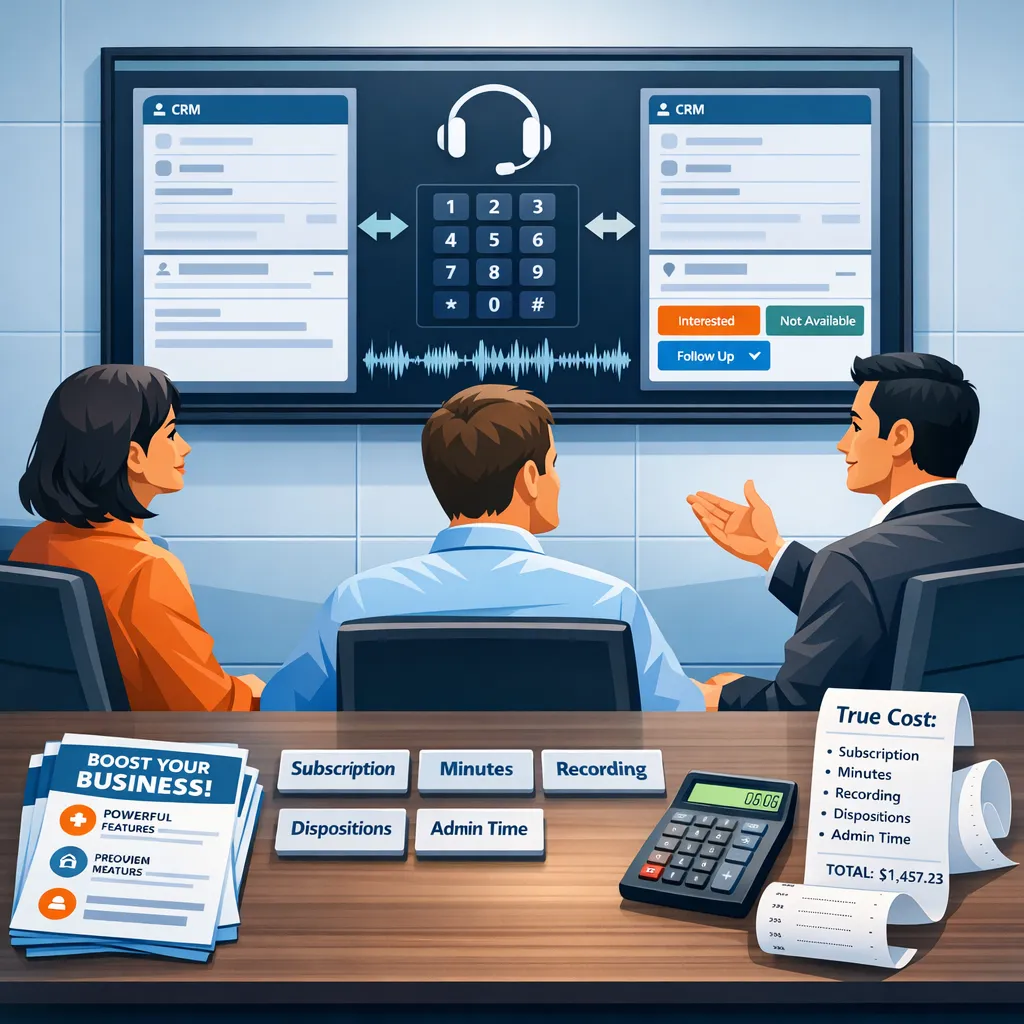
Calculating the true cost of a telephony system requires looking beyond the marketing materials and evaluating the exact feature sets required by a revenue operations team. The following examples demonstrate the total cost of ownership for different team structures.
Sync Cost for a 10-Person Outbound Sales Team
Imagine a B2B technology company with a 10 person outbound Sales Development Representative (SDR) team. This team requires native integrations with both HubSpot and Salesforce. They also require call recording and AI call summaries to help with coaching.
Aircall Calculation: To get the Salesforce integration, the team must purchase the Professional plan at $50 per user per month. To get AI call summaries, they must purchase the AI Assist add-on at $9 per user per month.
- License Cost: 10 users * $50 = $500 / month
- AI Add-on Cost: 10 users * $9 = $90 / month
- Total Aircall Cost: $590 / month (Billed annually at $7,080)
Dialpad Calculation: To get the Salesforce integration, the team must purchase the Pro plan at $25 per user per month. Dialpad includes AI call transcription and summaries in this price.
- License Cost: 10 users * $25 = $250 / month
- AI Add-on Cost: $0 (Included)
- Total Dialpad Cost: $250 / month (Billed annually at $3,000)
RingCentral Calculation: To get the Salesforce integration and automatic call recording, the team must purchase the Advanced plan at $25 per user per month.
- License Cost: 10 users * $25 = $250 / month
- Total RingCentral Cost: $250 / month (Billed annually at $3,000)
(Note: If the team required advanced contact center features like a power dialer, they would need RingCX at $65 per user, bringing the monthly total to $650.)
Sync Cost for a Mixed 50-User Deployment
Imagine a mid-sized company with 50 total employees. 20 employees are sales representatives who need the Salesforce integration and advanced call handling. The remaining 30 employees are back-office staff who only need basic internal calling and video meetings.
Dialpad Calculation: Dialpad allows mixed licensing.
- 20 Sales Users on Pro Plan: 20 * $25 = $500 / month
- 30 Back-Office Users on Standard Plan: 30 * $15 = $450 / month
- Total Dialpad Cost: $950 / month
RingCentral Calculation: RingCentral also supports mixed deployments.
- 20 Sales Users on Advanced Plan: 20 * $25 = $500 / month
- 30 Back-Office Users on Core Plan: 30 * $20 = $600 / month
- Total RingCentral Cost: $1,100 / month
In both scenarios, budgeting requires careful attention to which features are gated behind premium tiers. Organizations must map their exact requirements for CRM integrations, AI functionality, and user counts before signing annual agreements.
Common HubSpot Salesforce Call Sync Problems
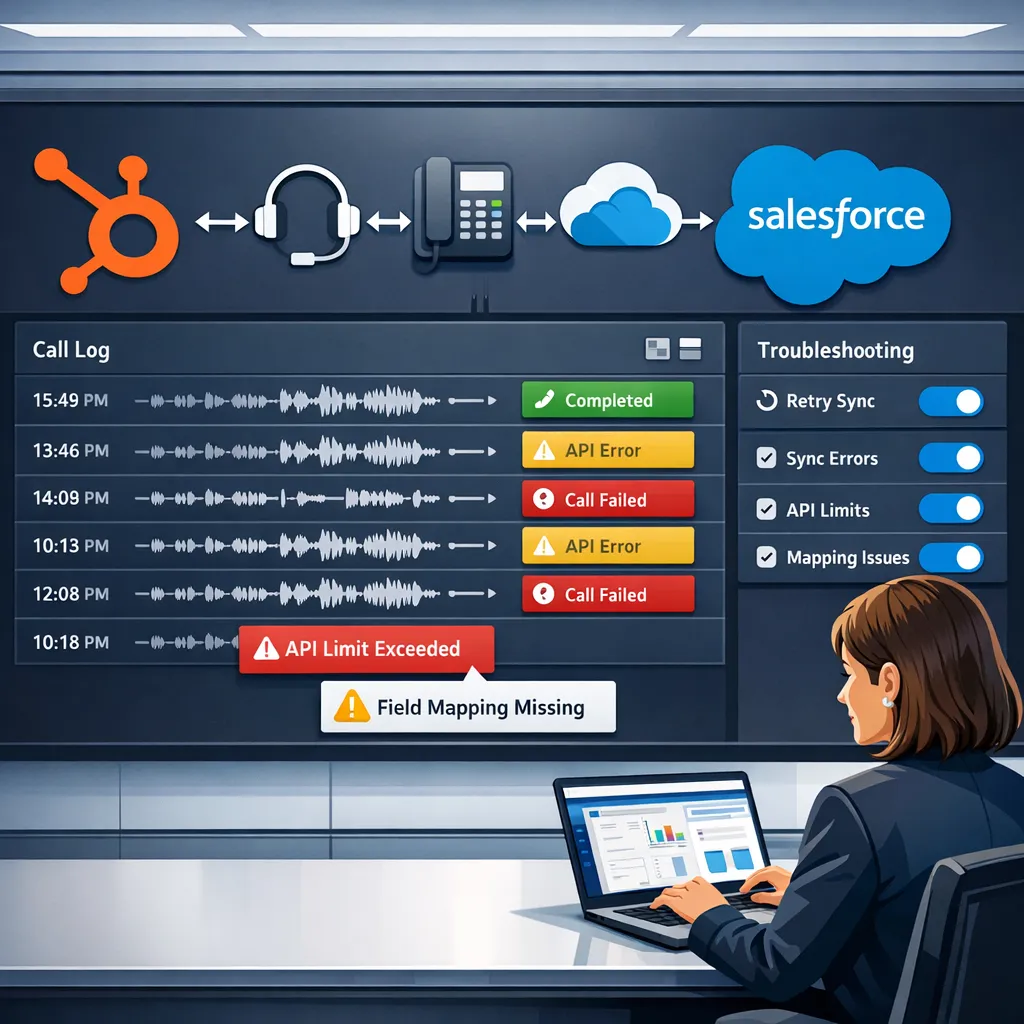
Even with a perfect initial setup, managing a HubSpot Salesforce call sync requires ongoing maintenance. Revenue operations administrators frequently encounter errors that prevent calls from logging accurately.
Resolving Duplicate Records in the Call Sync
One of the most common issues is the creation of duplicate records. HubSpot uses the email address as the primary unique identifier for a contact. If a call is made and logged in HubSpot to an email address that does not perfectly match an existing lead or contact in Salesforce, HubSpot may attempt to create a brand new lead in Salesforce. To prevent this, administrators should ensure that email addresses are strictly unique and employ active de-duplication rules in both Salesforce and HubSpot.
Identifying Blocked Call Syncs
When a call fails to sync, the system leaves a digital trail. Administrators can check the “Salesforce Sync” card located on any individual contact record inside HubSpot. This card displays specific error messages explaining exactly what is preventing the contact, and its associated call activities, from passing over to Salesforce. Users can click “View error detail” for deeper technical context. Additionally, administrators can use the Sync Health tab in the HubSpot integration settings to view a high-level list of all currently blocked records.
Correcting Property Mismatches Between HubSpot and Salesforce
Data types must align perfectly between the two systems. In Salesforce, data is stored in “fields,” while in HubSpot, data is stored in “properties”. If a HubSpot property is mapped to an incompatible Salesforce field type, the sync will either throw an error or create a formatting mess.
For example, if you are attempting to sync a call outcome, the dropdown options in the HubSpot property must perfectly match the picklist values in the Salesforce field. If a sales representative logs a call in HubSpot with an outcome of “Left Voicemail,” but the Salesforce picklist only accepts the value “Voicemail,” the activity sync will fail due to a validation error. Regularly reviewing field mappings is a critical maintenance task for administrators.
Managing Ownership Resets in the Sync
Syncing call data can sometimes cause unexpected changes in lead ownership. All Salesforce users can sync to HubSpot via the integration user, but only mapped HubSpot users can sync back into the Salesforce Contact Owner field. If HubSpot attempts to push a call activity and update an owner that does not exist or is not mapped correctly in Salesforce, the Owner ID field will reset to the last known valid value from Salesforce. Administrators must ensure that every active sales representative has a properly mapped user profile in both systems.
How Kixie Handles HubSpot and Salesforce Call Sync
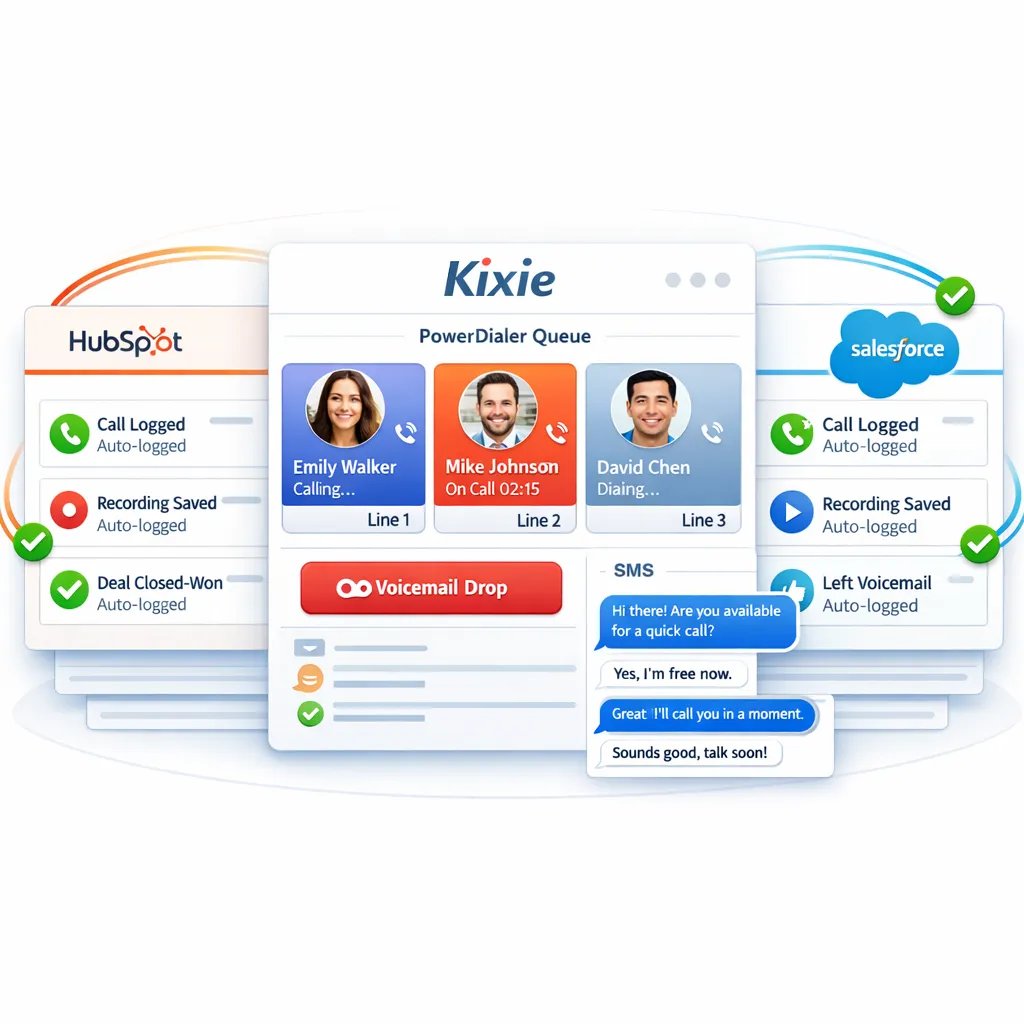
For revenue teams that want every call logged automatically in HubSpot or Salesforce without paying extra for a sync tier, Kixie is built around that exact workflow. The platform offers a power dialer, multi-line dialer, local presence dialing, voicemail drop, and two-way SMS, with native integrations into HubSpot, Salesforce, Pipedrive, and Zoho that log calls, recordings, and disposition data in real time. Teams that have been paying add-on fees to access CRM syncing on other platforms often find that Kixie delivers the same outcome, automatic call logging and activity reporting, without the upsell ladder.
HubSpot Salesforce Call Sync FAQs
Does the HubSpot Salesforce integration transfer call audio files natively? No, the native integration does not transfer call audio recordings or large media files. It only syncs the metadata of the call, such as the timestamp, duration, outcome, and text notes. Moving actual audio files requires custom CRM API scripts, HubSpot Operations Hub Professional workflows, or an IPaaS solution like Workato or Make.
How long does it take for a logged call to appear in the other system? While certain actions like making a call act as instant triggers, the standard database polling occurs approximately every 15 minutes. Therefore, administrators should expect a delay of up to 15 minutes for standard data updates to reflect across both platforms.
Do all VoIP providers integrate with both HubSpot and Salesforce on their basic plans? No. Most major telephony providers gate their Salesforce integration behind premium pricing tiers. For example, Aircall requires the $50 per month Professional plan, Dialpad requires the $25 per month Pro plan, and RingCentral requires the $25 per month Advanced plan to enable CRM synchronization.
What happens if a call is logged to a contact that is not on my inclusion list? If you have configured an inclusion list (selective sync), any contact that does not meet the criteria of that list will not sync in either direction. If a representative calls a contact outside the inclusion list, the call activity will be logged in HubSpot, but it will be blocked from pushing into Salesforce.
Will updates to Salesforce formula fields trigger a call sync? No. Updates to a Salesforce formula field do not trigger a sync back to HubSpot. However, if you update a standard mapped field that happens to be used within that formula, that specific update will trigger the sync.
Can the integration handle custom objects related to calls? Yes, the integration allows for the syncing of custom objects, tickets, and advanced workflows, provided the integration user has the appropriate read/write permissions in Salesforce to access those specific objects.
Key Takeaways on HubSpot Salesforce Call Sync
Implementing a HubSpot Salesforce call sync is a foundational step in modern revenue operations. Manual data entry is a massive drain on productivity, costing representatives roughly 19% of their working hours. By automating this process, organizations can recapture up to six hours per week per representative, leading to higher daily call volumes and faster deal cycles.
However, the technology requires careful configuration. Revenue operations teams must:
- Allocate a dedicated Salesforce license for the integration user and parse its permissions carefully to ensure data flows securely.
- Understand the 15-minute polling intervals and how instant activity triggers impact workflow automation.
- Audit their telephony vendor contracts, as necessary integrations for Salesforce and HubSpot are almost always gated behind premium pricing tiers starting at $25 to $50 per user monthly.
- Maintain strict data hygiene by mapping property fields identically between both platforms and using inclusion lists to prevent database bloat.
By moving away from manual note-taking and adopting an automated sync, sales organizations can eliminate data silos, improve forecasting accuracy, and allow their representatives to focus entirely on generating revenue rather than wrestling with administrative spreadsheets.
Ready to close more deals with Kixie?
See how Kixie's AI-powered tools can transform your sales and support operations.
Start Free Trial