

 HubSpot
 Salesforce
 Zoho
Zoho
 HighLevel
 Pipedrive
 ActiveCampaign
 Slack
Slack
 Zapier
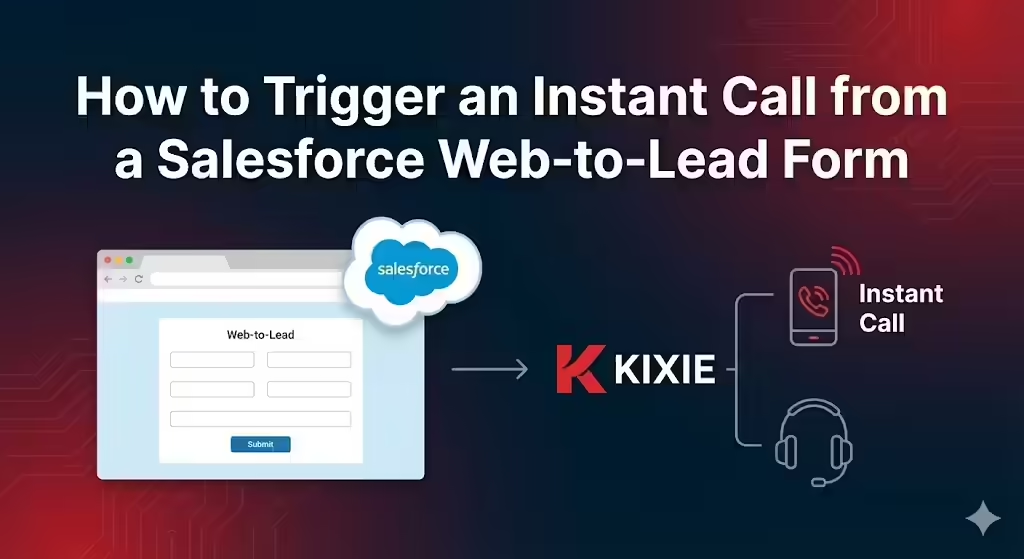
This architectural guide delineates the "Parallel Post" method for bypassing Salesforce Web-to-Lead server queues, enabling the sub-60-second response time required to secure a 391% conversion lift. The solution utilizes client-side JavaScript to execute two simultaneous HTTP requests: a form submission to the CRM and a direct operational command to the Kixie "Make a Call" API endpoint POST https://apig.kixie.com/app/event. Essential payload parameters include businessid, apikey, email (for agent routing), and target, which requires strict E.164 phone number sanitization (e.g., +15551234567) to ensure deliverability. The implementation uses Promise.all() to manage race conditions and necessitates mode: 'no-cors' for the Salesforce fetch request to handle Cross-Origin Resource Sharing limitations. Specific code strategies are provided for Unbounce via the Script Manager and Webflow via Custom Footer Code, including logic for "queue" based routing and duplicate submission prevention.
Table of Contents
- Executive Summary: The Mathematical Mandate of the Platinum Minute
- The Latency Crisis in Traditional Salesforce Web-to-Lead Architectures
- The Technical Architecture of the Kixie "Make a Call" API
- Implementation Strategy – How to Trigger an Instant Call via Parallel Fetch
- Step-by-Step Implementation for Unbounce Web-to-Lead Forms
- Implementation Guide for Webflow Forms to Trigger an Instant Call
- Advanced Routing – Queues and Context for the Instant Call
- Data Consistency and "Closing the Loop" with Salesforce
- Troubleshooting and Security Considerations for the Technical Architecture
- Conclusion: The Operational Advantage of the Platinum Minute and Instant Call
Executive Summary: The Mathematical Mandate of the Platinum Minute
In the current environment of high-velocity sales, the time between lead generation and sales engagement is the primary determinant of revenue outcomes. We operate in a market where lead decay is exponential. While the industry has long promoted the "Golden Window," a five-minute benchmark for lead response, rigorous analysis of sales acceleration data suggests this standard is rapidly becoming obsolete. It is being replaced by a far more unforgiving metric: the "Platinum Minute".
Empirical research presents a stark reality: responding to a prospect within the first minute of form submission yields a conversion increase of 391% compared to waiting just one minute longer. This is a geometric progression in efficacy. Data indicates that teams engaging within this first minute are 100 times more likely to connect with the lead than those who wait 30 minutes. Conversely, waiting just five minutes, the previous industry standard, results in an 80% drop in qualification odds compared to the one-minute mark.
The implications of this "391% solution" require a fundamental rethinking of CRM data structures. Since a sixty-second delay effectively halves conversion potential, the traditional "Pull" architectures inherent in Salesforce Web-to-Lead forms, characterized by asynchronous processing and server-side queuing, constitute a structural failure. Standard API polling intervals or third-party middleware often introduce latency exceeding 60 seconds, forfeiting the advantage before the sales representative is aware of the opportunity.
This report details the "Parallel Post" architecture methodology. By utilizing client-side JavaScript execution on web forms, organizations can trigger the Kixie "Make a Call" API simultaneously with the Salesforce Web-to-Lead submission. This ensures the sales representative’s phone rings the instant the prospect clicks "Submit," achieving the theoretical minimum response time.

The Latency Crisis in Traditional Salesforce Web-to-Lead Architectures
To understand why a custom API implementation is necessary for immediate lead response, one must first examine the mechanical inefficiencies of the standard "Pull" model used by most B2B organizations. While data-resilient, this model is structurally incapable of meeting the sub-60-second demands of the "Platinum Minute" required for maximum conversion.
The Anatomy of the Salesforce Web-to-Lead Bottleneck
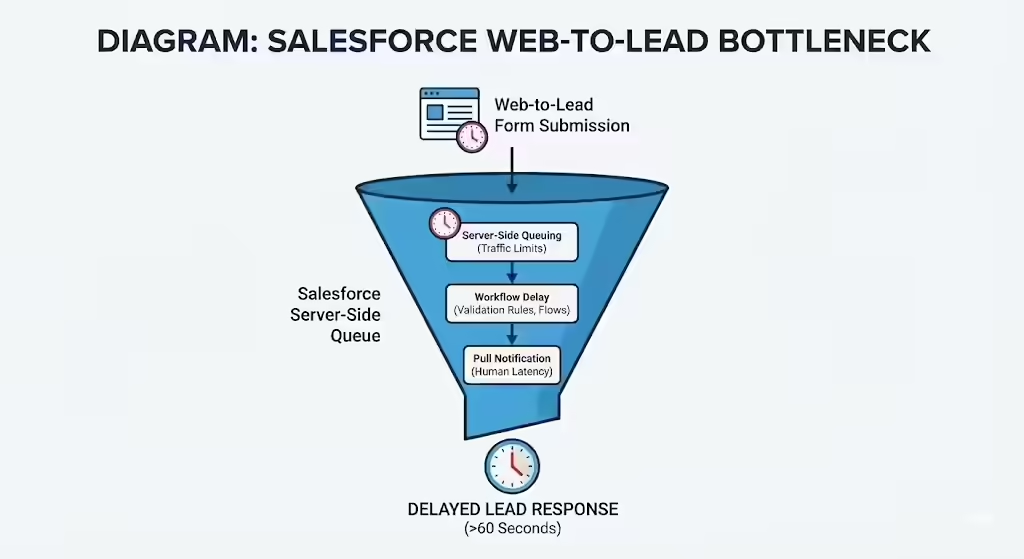
Salesforce’s Web-to-Lead functionality is the standard ingestion point for B2B leads, but its design prioritizes database integrity over real-time event triggering. When a form is submitted via the standard endpoint, a cascade of server-side processes initiates, adding incremental latency that destroys speed-to-lead.
- Server-Side Queuing: Salesforce enforces strict limits on concurrent processing. When traffic limits are approached, Salesforce queues requests rather than rejecting them. The "Pending Request Queue" can hold up to 50,000 requests, meaning a lead might sit in the queue for minutes depending on the instance's load.
- The Workflow Delay: Once ingested, the record must traverse the internal logic layer, including Validation Rules, Assignment Rules, and Flows. Salesforce documentation warns that real-time notifications can be delayed in large organizations due to this order of execution.
- The "Pull" Notification: Finally, the system generates an alert, which relies on the rep actively refreshing their inbox or noticing a notification. This introduces human latency, defined as the time between the notification arriving and the human eye perceiving it, guaranteeing the response falls outside the one-minute window.
The Failure of Middleware in Speed-to-Lead
Many teams attempt to modernize this stack with middleware like Zapier or Make, but these tools often exacerbate latency.
- Polling Intervals: Standard Zapier plans check Salesforce for new records every 5 to 15 minutes. In the context of lead decay, a 5-minute delay reduces qualification odds by 21x.
- Sequential Chains: A typical automation workflow is linear (Form Submit -> Salesforce Create -> Zapier Trigger -> Call). This series circuit means the call cannot start until Salesforce has fully processed the lead, inherently accepting the database processing time as the minimum delay.
The Solution: The "Push" Model for Instant Calls
To achieve a sub-60-second response, the architectural structure must change from "Series" to "Parallel". In this "Push" architecture, the trigger originates from the user's browser at the exact moment of intent, rather than from the database. The web form executes two simultaneous actions: sending the data to Salesforce for storage, and sending a direct instruction to the telephony API to initiate a call. In this model, the action itself becomes the notification, forcing a "context switch" where the rep answers a ringing phone immediately.
The Technical Architecture of the Kixie "Make a Call" API
The core mechanism for the zero-latency solution described in this report is Kixie’s Open API, specifically the "Make a Call" endpoint. Unlike standard webhooks that merely transmit data for logging, this endpoint is an operational command interface that instructs the telephony infrastructure to bridge a voice connection immediately.
The Kixie API Endpoint Mechanics for Instant Calls
The target endpoint for triggering an instant call is POST https://apig.kixie.com/app/event. This endpoint functions as an event receiver that causes the call to happen. It requires a Content-Type of application/json.
Authentication and Prerequisites for the Kixie API
Implementation of this API typically requires the Professional or Enterprise billing tier. Developers must gather specific credentials from the Kixie Dashboard to configure the request.
| Credential | Location in Dashboard | Purpose |
|---|---|---|
Business ID (businessid) |
Manage > Account Settings | Identifies the corporate tenant. |
API Key (apikey) |
Manage > Account Settings > Integrations | Authenticates the request. Must be kept secure. |
User Email (email) |
Manage > Agents | Identifies the specific agent (Sales Rep) whose extension will ring first. |
Queue ID (id) |
Manage > Inbound > Queues | Required only if routing to a ring group instead of an individual. |
The JSON Payload Schema for Triggering the Call
The API expects a precise JSON object. Understanding the parameters is vital for a successful request.

Example Payload for Single Agent Dialing:
{
  "businessid": "12345",
  "email": "sales.rep@yourcompany.com",
  "target": "+15550199876",
  "displayname": "Instant Web Lead",
  "eventname": "call",
  "apikey": "xxxxxxxx-xxxx-xxxx-xxxx-xxxxxxxxxxxx"
}
The Telephony Flow Experience of the Instant Call
The user experience this API triggers is "Agent-First". The sequence is:
- Trigger: The API receives the request from the web form.
- Leg A (The Agent): Kixie rings the agent's extension first. The agent sees the
displayname(e.g., "Instant Web Lead"). - Bridge: The agent picks up the phone.
- Leg B (The Lead): Only after the agent answers does Kixie dial the target number.
This ensures the lead never picks up to silence; the agent is live the moment the prospect answers.
Implementation Strategy – How to Trigger an Instant Call via Parallel Fetch
When implementing an instant call trigger from a web form, the core technical challenge is executing two distinct HTTP requests from a single user interaction event (the form submit) without one blocking the other.
The JavaScript fetch Implementation for Parallel Posting
To ensure the call is triggered immediately without waiting for the CRM to process data, we utilize the fetch API. This allows for a "Parallel Post" architecture where the Salesforce submission and the Kixie call trigger race in parallel.
The Execution Flow:
- Event Listener: Intercept the form's submit event and use
event.preventDefault()to stop the standard submission. - Data Extraction: Harvest values (Phone, Email, Name) from the input fields.
- Data Formatting: Clean the phone number to E.164 format (required for the API).
- Parallel Execution: Use
Promise.all()to fire the Salesforce POST and the Kixie API POST simultaneously. - Redirect: Once the promises resolve, redirect the user to the success page to complete the experience.
Handling E.164 Phone Formatting for the API
The Kixie API requires phone numbers in E.164 format (e.g., +15551234567) for high deliverability. Web forms often contain dashes, parentheses, or spaces which must be stripped before the API request is sent.
function formatPhoneNumber(rawNumber) {
    // Remove all non-numeric characters
    let cleaned = rawNumber.replace(/\D/g, '');
    // Basic logic: If 10 digits (US), prepend '1'
    if (cleaned.length === 10) {
        cleaned = '1' + cleaned;
    }
    return '+' + cleaned;
}
Step-by-Step Implementation for Unbounce Web-to-Lead Forms
For teams using Unbounce, achieving zero-latency lead response requires bypassing the native form handler using the Script Manager to inject custom JavaScript. This allows the form to trigger an external API call simultaneously with the standard data collection.
Prerequisites for the Unbounce Instant Call Script
To implement this script in Unbounce, you will need the following specific data points:
- Kixie Business ID & API Key: Found in the Kixie Dashboard under Account Settings.
- Salesforce Organization ID (OID): The unique identifier for your Salesforce instance.
- Field IDs: The specific ID attributes for your Unbounce form inputs (e.g.,
phone_number,email_address).
The Unbounce Code Structure for Salesforce Integration
In the Unbounce Dashboard, go to Settings > Script Manager and add a new script to the "Body End" of your target landing page domain.
The Universal Parallel-Post Script:
<script>
  // Configuration Constants
  const KIXIE_API_KEY = 'YOUR_KIXIE_API_KEY';
  const KIXIE_BUSINESS_ID = 'YOUR_BUSINESS_ID';
  const AGENT_EMAIL = 'sales.rep@yourdomain.com'; // or Manager email for queues
  const SFDC_OID = 'YOUR_SALESFORCE_OID';

  // Helper: Retrieve value safely from Unbounce DOM
  function getFieldValue(fieldId) {
      const field = document.getElementById(fieldId);
      return field ? field.value : '';
  }
  // Helper: E.164 Formatter for API compatibility
  function formatPhone(p) {
      return '+' + p.replace(/\D/g, '');
  }

  // Main Event Listener
  document.addEventListener('DOMContentLoaded', function() {
      const form = document.querySelector('form');
      if (form) {
          form.addEventListener('submit', function(e) {
              e.preventDefault(); // Stop standard Unbounce submit

              // Data Harvesting
              const phoneRaw = getFieldValue('phone_number'); // Verify IDs in Unbounce
              const email = getFieldValue('email');
              const firstName = getFieldValue('first_name');
              const lastName = getFieldValue('last_name');
              const kixiePhone = formatPhone(phoneRaw);

              // 1. Construct Kixie JSON Payload
              const kixiePayload = {
                  "businessid": KIXIE_BUSINESS_ID,
                  "email": AGENT_EMAIL,
                  "target": kixiePhone,
                  "displayname": `Web Lead: ${firstName} ${lastName}`,
                  "eventname": "call",
                  "apikey": KIXIE_API_KEY
              };

              // 2. Construct Salesforce Payload (FormData for POST)
              const sfdcData = new FormData();
              sfdcData.append('oid', SFDC_OID);
              sfdcData.append('first_name', firstName);
              sfdcData.append('last_name', lastName);
              sfdcData.append('email', email);
              sfdcData.append('phone', phoneRaw);

              // 3. Parallel Execution
              // Request A: Instant Call Trigger
              const kixieRequest = fetch('https://apig.kixie.com/app/event', {
                  method: 'POST',
                  headers: { 'Content-Type': 'application/json' },
                  body: JSON.stringify(kixiePayload)
              });

              // Request B: The CRM Record (using no-cors to bypass browser blocks)
              const sfdcRequest = fetch('https://webto.salesforce.com/servlet/servlet.WebToLead', {
                  method: 'POST',
                  mode: 'no-cors',
                  body: sfdcData
              });

              // Wait for completion (Race Condition Management)
              Promise.all([kixieRequest, sfdcRequest])
                .then(() => {
                      console.log('Kixie triggered and SFDC posted');
                      window.location.href = '/thank-you';
                  })
                .catch(err => {
                      console.error('Error in submission:', err);
                      // Fallback redirect
                      window.location.href = '/thank-you';
                  });
          });
      }
  });
</script>
Critical Nuance: Salesforce and CORS
Salesforce's endpoint does not typically return CORS headers, meaning a browser on your domain cannot strictly "read" the response. If you attempt a standard fetch, it may fail. To handle this, the script above sets mode: 'no-cors' in the fetch options. This creates an "opaque" response: the browser permits the transmission to Salesforce, but the code cannot read the specific success status.
Implementation Guide for Webflow Forms to Trigger an Instant Call
Webflow's native form handler submits data to the Webflow CMS but lacks the ability to fire synchronous external API calls without third-party tools. To implement the "Instant Call" architecture on Webflow, developers must use the Project Settings > Custom Code area to inject a script that runs in parallel with Webflow's native handling.
Prerequisites for the Webflow Instant Call Integration
- Credentials: You will need your Kixie Business ID and API Key (from the Kixie Dashboard).
- Form IDs: Determine the IDs of your inputs in the Webflow Designer (e.g.,
Name-2,Email-2). - Logic: The script below attaches to the submit event. It fires the Kixie API call explicitly while returning
trueto allow Webflow's native script to continue processing the CMS submission.
The Webflow-Specific Script for Salesforce Web-to-Lead
Paste this code into the Footer Code section of your Project Settings.
<script>
  // Wait for Webflow's jQuery to load
  var Webflow = Webflow || [];
  Webflow.push(function() {
     const form = document.getElementById('email-form'); // Default Webflow ID
     const API_KEY = 'YOUR_KEY';
     const BIZ_ID = 'YOUR_ID';
     const REP_EMAIL = 'rep@kixie.com';

     $(form).submit(function(e) {
         // Run Kixie in parallel explicitly.
         // Retrieve values based on Webflow Designer IDs
         const phoneVal = $('#Phone-2').val();
         const nameVal = $('#Name-2').val();
         const cleanPhone = '+' + phoneVal.replace(/\D/g, '');

         const payload = {
             "businessid": BIZ_ID,
             "email": REP_EMAIL,
             "target": cleanPhone,
             "displayname": "Webflow Lead: " + nameVal,
             "eventname": "call",
             "apikey": API_KEY
         };

         // Fire Kixie "fire and forget" style
         fetch('https://apig.kixie.com/app/event', {
             method: 'POST',
             headers: {'Content-Type': 'application/json'},
             body: JSON.stringify(payload)
        }).then(res => {
             console.log("Kixie Call Initiated");
        }).catch(err => {
             console.error("Kixie Call Failed", err);
        });

        return true; // Important: Let Webflow continue its standard submission
     });
  });
</script>
Webflow Logic vs. Client-Side Speed
While Webflow offers server-side "Logic" flows that can send webhooks, these queues can experience processing delays. For the specific goal of responding in under 60 seconds, the client-side execution above is theoretically faster as it initiates the request directly from the user's browser, removing the server hop.
Advanced Routing – Queues and Context for the Instant Call
For enterprise operations, triggering a call to a single hardcoded agent is often insufficient. This section details how to modify the "Instant Call" payload to support ring groups and inject rich data for the sales agent.
Using Kixie Queues for Multi-Agent Routing
To ring multiple agents simultaneously or use Round Robin routing, the API payload must target a Queue ID rather than a specific agent's email.
Modified Payload for Queues:
eventname: Must be changed from "call" to "queue".id: This is the Queue ID found in Kixie Dashboard > Manage > Inbound > Queues.email: In the queue context, this field is required by the schema but is usually populated with a manager's email or system account, as the Queue settings dictate the routing.
{
  "businessid": "12345",
  "email": "manager@company.com",
  "target": "+15550199876",
  "displayname": "Team Hot Lead",
  "eventname": "queue",
  "id": 998877,
  "apikey": "xxxxxxxx"
}
Injecting Contextual Data into the Instant Call
The displayname field in the payload allows for context injection. Rather than populating it with generic text like "Web Lead," developers should inject high-value data derived from the form inputs.
- Example: If the form captures company size, the script can construct a string:
displayname: "Ent Lead (500+ emp): John Doe". - Benefit: When the agent's phone rings, this context appears on the dialer before they accept the call, allowing for a customized opening statement.
Data Consistency and "Closing the Loop" with Salesforce
The "Parallel Post" architecture creates a telephony event (the call) independent of the CRM record creation. This introduces a specific challenge: the Kixie call may initiate before the Salesforce lead record has been created by the slow Web-to-Lead queue.
The "Unknown Record" Challenge in Salesforce
When Kixie initiates the call, it searches Salesforce for the phone number to display CRM data. If the Web-to-Lead process is lagging, the lead does not yet exist, and the agent will see an unknown number.
The Disposition Webhook Solution for Data Sync
Data consistency is restored because call logging happens at the end of the call (the Disposition event).
- Call Start: Kixie dials. Lead is unknown.
- Call Duration: The conversation lasts several minutes.
- Sync Delay: By the time the call ends, Salesforce has successfully processed the Web-to-Lead queue and created the record.
- The Log: Kixie's background sync searches for the phone number again, finds the newly created lead, and logs the activity.
Recommendation: To ensure this sync works, enforce E.164 phone formatting on the Salesforce side using a "Before Save" Flow so the database format matches Kixie's format perfectly.
Troubleshooting and Security Considerations for the Technical Architecture
Implementing a client-side API trigger for instant calls introduces specific security and operational nuances that must be managed to ensure system integrity.
Security Risks of Client-Side Kixie API Keys
Hardcoding the Kixie API key in the JavaScript of a public landing page exposes it to anyone who views the page source.
- Referrer Restrictions: Developers should check if their API provider supports restricting key usage to specific referrer domains.
- The Proxy Server (Best Practice): For maximum security, the form should POST to a lightweight endpoint on your own server (e.g., AWS Lambda), which attaches the API Key server-side and forwards the request to Kixie.
Preventing Duplicate Instant Call Submissions
Users often double-click submit buttons, which in this architecture would trigger two simultaneous calls to the sales rep.
- Fix: In the JavaScript handler, immediately disable the submit button after the first click (
btn.disabled = true) or set a submission flag to prevent re-execution.
Handling Salesforce Web-to-Lead Failures
If the Salesforce Web-to-Lead POST fails (e.g., due to a Validation Rule) but the Kixie API call succeeds, the rep will connect to a "Ghost Lead".
- Protocol: Train reps to use the "Quick Create" feature in the Kixie PowerCall dialer. If they connect to a lead with no CRM record, they can create it directly from the dialer during the call.
Conclusion: The Operational Advantage of the Platinum Minute and Instant Call
By implementing the "Parallel Post" architecture, organizations transition from a "Reactive" stance, characterized by waiting for emails and managing queue latencies, to a "Proactive" stance where connection is forced instantly.
The "391% conversion" statistic reflects the rapid decay of prospect intent. The standard Salesforce Web-to-Lead process was engineered for an era where a 15-minute response was acceptable. By utilizing the Kixie API to bypass this queue, revenue teams effectively delete time from the conversion equation.
You are not just calling faster; you are calling instantly. This solution represents the technical realization of "Speed to Lead". It demands precise engineering, specifically careful handling of JavaScript promises, strict phone number sanitization, and a deep understanding of API payloads, but the Return on Investment, measured in tripled conversion rates and 100x connection probability, justifies the engineering effort.