

 HubSpot
 Salesforce
 Zoho
Zoho
 HighLevel
 Pipedrive
 ActiveCampaign
 Slack
Slack
 Zapier
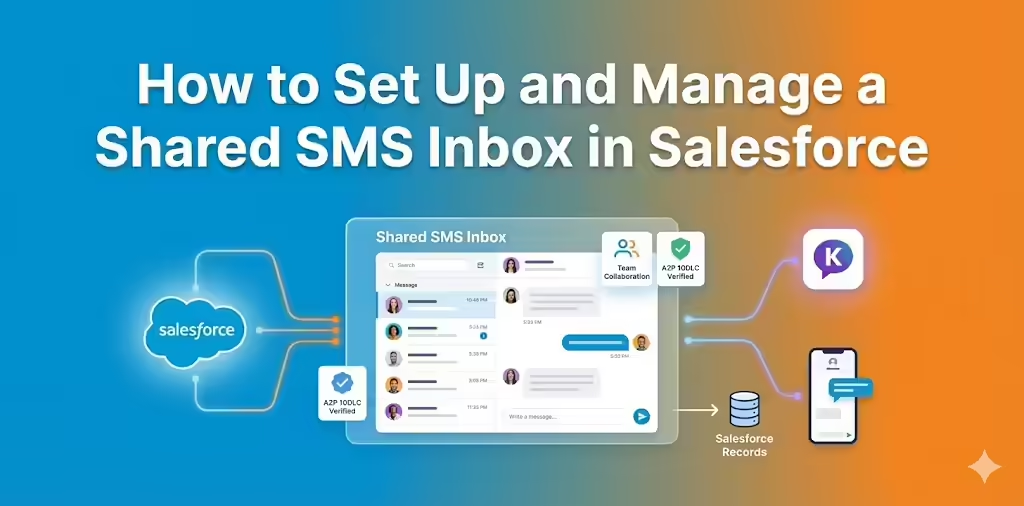
TL;DR: This technical guide explains how to set up and manage a Shared SMS Inbox in Salesforce by utilizing Kixie as a "Sidecar" System of Engagement. Unlike native solutions that consume Omni-Channel capacity via stateful MessagingSession objects, this configuration logs interactions as stateless "Completed Tasks" within the Salesforce System of Record. Implementation requires provisioning a static DID, executing A2P 10DLC Brand and Campaign registration to prevent carrier blocking, and modifying the Salesforce Task object Type picklist to include "Incoming SMS" and "Outgoing SMS" for granular reporting. Operational logic includes configuring Team SMS rules with Automatic Thread Locking (defaulting to 30 minutes) to prevent agent collision, utilizing Internal Notes for private collaboration, and deploying Webhooks for "Speed to Lead" automation directly from forms to the Shared SMS Inbox.
Table of Contents
- The Architecture of a Shared SMS Inbox in Salesforce
- The Strategic Imperative of a Shared SMS Inbox in Salesforce
- Technical Prerequisites to Set Up a Shared SMS Inbox in Salesforce
- How to Set Up the Shared SMS Inbox in Kixie
- How to Manage a Shared SMS Inbox in Salesforce
- Advanced Automation for Your Shared SMS Inbox in Salesforce
- Analytics and Reporting for a Shared SMS Inbox in Salesforce
- The Synchronized Shared SMS Inbox in Salesforce
- Summary Checklist for Implementation
The Architecture of a Shared SMS Inbox in Salesforce
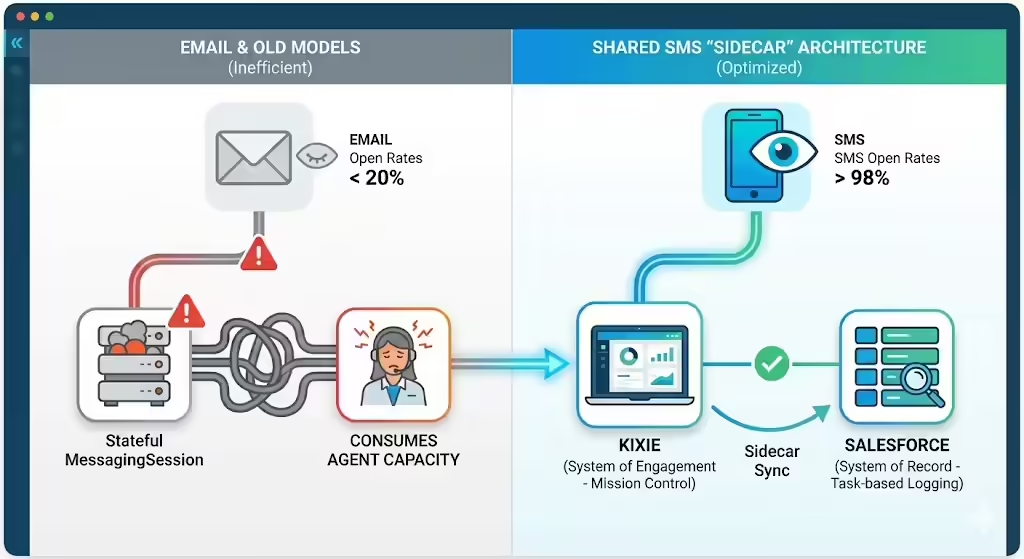
In the contemporary revenue operations environment, the medium of communication is as critical as the message itself. While email remains a staple of corporate correspondence, its efficacy in immediate lead engagement has plateaued, often yielding open rates below 20%. In stark contrast, Short Message Service (SMS) consistently delivers open rates exceeding 98%, with 90% of messages read within three minutes of delivery.
For sales organizations, this immediacy is not merely a convenience; it is a competitive imperative. However, the integration of a Shared SMS Inbox in Salesforce presents a complex challenge that, if mishandled, results in fragmented data, compliance liabilities, and operational chaos.
This report serves as the definitive resource for Sales Operations Managers and Salesforce Architects. It details the strategic design and technical implementation of a Shared SMS Inbox using Kixie within the Salesforce ecosystem.
Unlike standard support-focused configurations that rely on stateful MessagingSession objects which consume valuable agent routing capacity, the solution detailed herein uses a "Sidecar" architecture. This approach utilizes Kixie as the System of Engagement, providing a unified "Mission Control" dashboard to manage team-based texts, while strictly utilizing Salesforce as the System of Record via optimized Task-based logging.
The Strategic Imperative of a Shared SMS Inbox in Salesforce
The Operational Failure of Siloed Communication
To appreciate the necessity of a Shared SMS Inbox in Salesforce, it is vital to audit the failure points of the traditional, siloed model often found in sales teams. In a standard deployment, a Sales Development Representative (SDR) is issued a unique phone number utilized for outbound dialing and texting. This 1-to-1 relationship between agent and number works functionally for outbound efforts but collapses under the weight of complex inbound logic.
The "Siloed Failure" manifests in three critical operational risks:
- Invisibility and Data Loss: A conversation occurring on an agent's direct line is often invisible to the broader revenue team. If an agent leaves the company, the active text threads with hot leads effectively vanish, and the "context" of the negotiation is lost.
- The "Collision" Effect: In aggressive inbound sales teams where speed-to-lead is the primary KPI, multiple agents may attempt to work the same high-value lead simultaneously. Without a Shared SMS Inbox, disjointed communication signals to the prospect that the vendor is disorganized.
- Capacity Drain in Native Systems: Traditional Salesforce Digital Engagement models often treat an SMS thread like a support case, consuming a unit of the agent's capacity in Omni-Channel routing. This prevents the agent from receiving other high-value work, such as inbound voice calls, because the system fails to distinguish between "active troubleshooting" (support) and "asynchronous nurturing" (sales).
The "Mission Control" Solution
The Kixie Shared SMS Inbox addresses these failures by decoupling the phone number from the individual user identity. Instead of a number belonging to a person, the number belongs to a Function or a Team. This architecture establishes a "Mission Control" environment where a main company number routes all inbound traffic to a central interface visible to an authorized group of agents.
- Group Triage: Any available agent can view an incoming unassigned text, distributing the burden of response so peak traffic times do not result in dropped leads.
- Contextual Handoffs: An SDR can nurture a lead via text and then "release" the thread or tag an Account Executive (AE), allowing the AE to pick up the conversation seamlessly within the same thread.
- Rapid Qualification: In a Shared SMS Inbox, any team member can archive junk messages, like "STOP" or "Wrong Number", instantly cleaning the pipeline for the entire group.
The Salesforce "Sidecar" Architecture
A pivotal insight in the Salesforce Shared SMS Inbox configuration is the distinction between the System of Engagement (Kixie) and the System of Record (Salesforce). Most native CRM communication tools attempt to force the engagement layer inside the CRM's object model, which can be detrimental to sales velocity.
The Salesforce MessagingSession object is "stateful," meaning an "Open" session triggers the Omni-Channel routing engine to reserve capacity for that agent.
The Kixie solution uses a "Sidecar" architecture:
- The Sidecar (Kixie): The actual sending, receiving, and triaging of messages occur within the Kixie interface (PowerCall extension or Web Dashboard), which runs in parallel to Salesforce.
- The Engine (Salesforce): When a message is sent or received, Kixie pushes a "Completed Task" record into Salesforce.
| Feature | Salesforce Native (Digital Engagement) | Kixie Shared Inbox (Sidecar) |
|---|---|---|
| Primary Object | MessagingSession | Task (Activity History) |
| State | Stateful (Open/Active/Ended) | Stateless (Historical Record) |
| Routing Mechanism | Consumes Omni-Channel Capacity | Zero Capacity Consumption (Overlay) |
| Visibility Model | Owner-based or Queue-based | Team-based / Ring Group |
| Primary Use Case | Customer Support / Case Management | High-Volume Sales / Prospecting |
Competitor Market Analysis
To understand the unique value proposition of the Kixie implementation, it is helpful to compare this architecture with other market players.
- AirCall: While a robust voice solution, AirCall's integration often relies on a one-way sync for certain data points or lacks the granular "Thread Locking" capabilities required for a true Shared SMS Inbox experience. Their integration typically focuses heavily on voice, with SMS often treated as a secondary feature set without the "Mission Control" depth.
- RingCentral: Enterprise-grade but often cumbersome, RingCentral's integration with Salesforce can be complex and often requires the use of the Salesforce MessagingSession object, which brings capacity constraints. The user interface is frequently separate from the sales workflow, leading to "tab fatigue".
- Kixie: Positions itself specifically for Sales (vs. Unified Communications). The deep bi-directional sync, the focus on "Response Time" metrics, and the ability to trigger "Speed to Lead" calls from SMS keywords make it distinctively suited for revenue generation.
Technical Prerequisites to Set Up a Shared SMS Inbox in Salesforce
Effective implementation of a Shared SMS Inbox in Salesforce requires preparing the Salesforce environment to receive and categorize the high volume of data generated by the system. This section details the "System of Record" configuration necessary to set up the integration.
Salesforce Environment Readiness
The Kixie integration relies heavily on the standard Salesforce Task object. Unlike custom objects which incur additional storage costs and complexity, the Task object is native, indexed, and tightly integrated into standard Salesforce reporting.
Required Permissions:
To perform the set up, the administrator requires:
- System Administrator profile or equivalent.
- Customize Application permission.
- API Enabled permission for the integration user.
- Access to Object Manager and Page Layouts.
Modifying the Task Object for Granular Reporting
The standard Salesforce Task object includes a Type picklist, typically populated with generic values like "Call", "Email", and "Meeting". For granular reporting on a Shared SMS Inbox (e.g., distinguishing between inbound lead inquiries and outbound nurture texts), these values are insufficient.
Step-by-Step Configuration:
- Go to Setup: Click the gear icon in the top right corner and select Setup.
- Access Object Manager: Click the Object Manager tab and search for Task.
- Edit Fields: Select Fields & Relationships and locate the Type field.
- Add Picklist Values: Scroll to the Task Type Picklist Values section and click New.
- Define Values: Add "Incoming SMS" and "Outgoing SMS" as distinct values. Do not rely on a single "SMS" value, as directionality is crucial for analytics.
- Record Type Assignment: Critical Step. If your organization uses Record Types (e.g., "Sales Task" vs. "Support Task"), you must associate these new picklist values with the appropriate Record Types to avoid API errors.
Architectural Note: While some organizations use a single "SMS" value, best practice dictates enforcing directionality to enable "Response Rate" calculations later (i.e., ratio of Incoming to Outbound).
Activity History and Timeline Layouts
Data is useless if it is not visible. The sales representative's workflow relies on the Activity Timeline on the Lead or Contact record.
- Page Layouts: Go to the Page Layouts for Leads, Contacts, Accounts, and Opportunities.
- Timeline Configuration: Ensure the Activity Timeline component is added to the Lightning Record Page.
- Field Visibility: Configure the compact layout or timeline view to display Subject (e.g., "SMS from +15550199"), Description (the body of the text message), and Date/Time.
Why This Matters: By exposing the Description field in the timeline summary, agents can read the content of the SMS directly from the Lead view without clicking into the Task record itself, reducing click-depth.
Custom Fields for Advanced Automation (Optional but Recommended)
For sophisticated implementations of a Shared SMS Inbox, consider adding a custom field to the Task object:
- Field Name: Kixie Call ID or Kixie Message ID.
- Type: Text (External ID).
- Purpose: Storing the unique identifier from Kixie allows for easier de-duplication and creates a handle for future API updates (e.g., if you later want to update the Task status based on a webhook).
How to Set Up the Shared SMS Inbox in Kixie
Setting up a Shared SMS Inbox requires configuring the Kixie Manager Dashboard to define access, routing logic, and team behavior. This section defines the physics of the Shared SMS Inbox: who sees the messages and how the system behaves during off-hours.

Provisioning the Shared Number
The first step in dashboard configuration is securing the digital real estate: the phone number.
- Local Presence vs. Toll-Free:
- Local Presence: Acquiring a number with a local area code (e.g., 212 for New York) significantly increases trust and engagement rates. If the Shared SMS Inbox is for a specific territory team, provision a number local to that region.
- Toll-Free (800/888): These are better suited for high-volume support but often have different throughput limits and verification processes than local numbers.
- Kixie ConnectionBoost: While Kixie’s ConnectionBoost feature uses dynamic numbers for outbound calling, a Shared SMS Inbox requires a static dedicated DID (Direct Inward Dialing) number that customers can save and reply to.
The 10DLC Compliance Gauntlet
Text messaging strategies in 2025 must strictly adhere to A2P 10DLC (Application-to-Person 10-Digit Long Code) regulations to avoid blocking by carriers like AT&T and Verizon.
The Registration Process:
- Brand Registration: You must register your legal business entity (Tax ID / EIN) within the Kixie dashboard to identify who is sending the messages.
- Campaign Registration: You must register the use case (e.g., "Mixed" or "Marketing" for sales, "Customer Care" for support).
- Content Samples & Consent: You must provide actual examples of intended texts and explicitly state how you collect consent (e.g., "Web form checkbox") and honor opt-outs (e.g., "Reply STOP").
Throughput Implications: Your "Trust Score," assigned by The Campaign Registry, determines your Messages Per Second (MPS). A Shared SMS Inbox with multiple agents blasting texts simultaneously might hit this cap, so ensure the campaign is registered for the appropriate volume tier.
Configuring the Team SMS Rule
To build the logic for the Shared SMS Inbox, Go to Manage > Numbers > Team SMS in the Kixie Dashboard.
Step-by-Step Construction:
- Add Rule: Click + ADD.
- Naming Convention: Use a descriptive name like "Inbound Sales - Main Line".
- Number Assignment: Select the dedicated DID provisioned for this inbox. Note that a single number can only be assigned to one Team SMS rule.
- Member Assignment: Select the Agents who will manage the inbox.
- Best Practice: Assign Kixie Teams (e.g., "Sales Group A") rather than individual users. This ensures that when a new SDR is hired and added to "Sales Group A," they automatically inherit access to the inbox without manual reconfiguration.
The Mechanics of Thread Locking
The "Reply-All" chaos, where two agents answer the same lead with contradictory information, is resolved in Kixie via Automatic Thread Locking.
How It Works:
When Agent A clicks into a conversation and begins typing, or explicitly "claims" the thread, the conversation becomes locked to Agent A. Other agents viewing the inbox will see a Lock Icon next to the thread and the input field will be disabled for them.
Configuration Strategy:
You must configure the Agent Assignment Time Limit.
- Default: 30 Minutes.
- High-Velocity Tuning: For aggressive SDR teams, lower this to 15 Minutes.
- Scenario: If Agent A claims a lead but then goes to lunch, a shorter timer ensures the thread "releases" back to the pool if the lead replies, allowing Agent B to jump in.
Managing Operating Hours
To manage customer expectations when the team is unavailable, you must configure operating hours.
- Rule Hours: Define the active window (e.g., M-F, 9:00 AM - 6:00 PM).
- Auto-Reply: Configure a template for off-hours, such as: "Thanks for reaching out to [Company]. We are currently closed. Our team will get back to you during business hours."
- Psychology: This creates an immediate "touch," satisfying the customer's need for acknowledgement.
How to Manage a Shared SMS Inbox in Salesforce
Technology is only as effective as the workflow that governs it. This section outlines the operational "Rules of Engagement" (ROE) for a sales team utilizing a Shared SMS Inbox in Salesforce via the Kixie PowerCall extension.
The Triage Workflow: "Mission Control"
Agents interact with the Shared SMS Inbox via the Kixie PowerCall extension (Chrome/Edge) or the Web App.
Visual Management:
The interface splits the view into "My SMS" (Direct Number) and "Team SMS" (Shared Number).
- Bold Text: Indicates an unread message.
- Lock Icon: Indicates the thread is currently being worked by another agent.
- Agent Avatar: Shows who locked the thread.
The Protocol:
- Scan: Agents monitor the Team SMS tab for bold (unread) threads.
- Claim: An agent clicks the thread. If it matches their territory or round-robin assignment, they engage.
- Review: Before typing, the agent scans the previous scrollback to understand context.
- Engage: The agent replies, locking the thread to them for the duration of the configured timer.
Collaboration: The "Internal Note" Whisper
Kixie allows agents to collaborate within a text thread without the customer seeing the conversation, utilizing Internal Notes.
- Mechanism: In the message composition bar, toggle from "SMS" to "Internal".
- Function: The message is posted into the thread stream but is yellow-highlighted and invisible to the customer.
Workflow Example:
An SDR can tag a senior rep ("@SeniorRep") to ask a technical question directly in the thread. The senior rep sees the note and replies internally with the answer, allowing the SDR to switch back to SMS and reply to the customer seamlessly.
Salesforce Logging: By default, internal notes are not synced to the Salesforce Task description, keeping the Salesforce Activity Timeline clean and focused on external interactions.
Handling Junk and "STOP" Replies
Shared SMS Inboxes often attract spam or "Wrong Number" replies from outbound campaigns.
- Collective Hygiene: Because visibility is shared, any agent can archive a junk thread.
- DNC Tagging: Agents must be trained to use the "Block/DNC" feature in Kixie for hostile replies.
- Impact: This action adds the number to the Kixie DNC list, preventing any future outbound calls or texts from anyone in the organization to that number.
MMS and File Sharing Limitations
Modern sales often requires sending images or PDFs, which Kixie supports via MMS (Multimedia Messaging Service) within the Shared SMS Inbox.
- File Types: JPEG, PNG, GIF, PDF.
- Size Limits: Carrier networks impose strict bottlenecks (approx. 0.675 MB for AT&T/Verizon and 1.5 MB for T-Mobile).
- Best Practice: Do not rely on MMS for large decks. Send a hosted link (DocSend, Google Drive) via standard SMS instead, and use MMS only for lightweight visuals.
Advanced Automation for Your Shared SMS Inbox in Salesforce
Advanced implementations of a Shared SMS Inbox in Salesforce involve architecting an automated ecosystem where Kixie, Salesforce, and other tools (like HubSpot) communicate programmatically. This section details how to automate these cross-platform interactions.

The "Speed to Lead" Auto-SMS (Hybrid Stack)
Inbound leads decay in value by the minute. To ensure an immediate text from the Shared SMS Inbox when a lead fills out a HubSpot form, even if no agent is awake, you can deploy a webhook automation.
The Architecture:
HubSpot Form → Workflow → Webhook → Kixie API → Customer.
- The Trigger: A HubSpot Workflow enrolls the contact upon form submission.
- The Webhook Action: HubSpot sends a POST request to Kixie's
send_smsendpoint. - The API Payload: Use the Business Team SMS API endpoint to ensure the text comes from the Shared SMS Inbox.
- Endpoint:
https://apig.kixie.com/app/event - Method: POST
- Payload Construction:
{ "businessid" : "YOUR_BUSINESS_ID", "apikey" : "YOUR_API_KEY", "eventname" : "bizsms", "target" : "{{contact.phone}}", "id" : "TEAM_SMS_RULE_ID", "message" : "Hi {{contact.firstname}}, thanks for your inquiry! I'm alerting our team now." } - Note: The "id" field is crucial, as it identifies which Shared SMS Inbox rule to use.
- Endpoint:
Salesforce Flow: Automating "STOP" Logic
You can use Salesforce Flows to listen to the Task logs created by Kixie and automate database hygiene for compliance.
Flow Logic:
- Trigger: Record-Triggered Flow on the Task object.
- Condition: Type EQUALS "Incoming SMS" AND Description CONTAINS "STOP" (Case Insensitive).
- Action (Get Record): Find the related Lead or Contact using the WhoId.
- Action (Update Record): Update Lead Status to "Unqualified," Set Email Opt Out to True, and Set DoNotCall to True.
- Strategic Value: This automates compliance, meaning a sales rep doesn't need to manually click "Opt Out" in Salesforce; the customer's text does it for them.
Advanced Outbound: The "Send to Queue" API
For sophisticated routing, Kixie's queue event API allows you to trigger a call from a specific queue based on a text interaction (e.g., a VIP Lead texts "Call me now").
- Automation: A Salesforce Button or Flow triggers the API.
- Payload:
{ "businessid" : "YOUR_BUSINESS_ID", "apikey" : "YOUR_API_KEY", "eventname" : "queue", "id" : "QUEUE_ID", "target" : "LEAD_PHONE_NUMBER", "email" : "agent@company.com" } - Outcome: The system instantly rings the specified agent (or round-robins the queue), and when they answer, it dials the lead.
Analytics and Reporting for a Shared SMS Inbox in Salesforce
The final pillar of the Shared SMS Inbox strategy is measurement. Because Kixie logs interactions to the standard Salesforce Task object, organizations can utilize native Salesforce Reports and Dashboards to audit performance without complex BI tools.
Key Performance Indicators (KPIs)
| KPI | Salesforce Report Configuration | Strategic Insight |
|---|---|---|
| Volume by Agent | Report: Tasks & Activities Filter: Type = Incoming SMS, Outgoing SMS Group By: Assigned To (User) |
Identifies who is carrying the workload in the Shared SMS Inbox and helps balance team capacity. |
| Response Ratio | Formula: (Count(Outgoing SMS) / Count(Incoming SMS)) |
Are agents engaging in conversation or just blasting one-way messages? A ratio near 1:1 implies healthy dialogue. |
| Lead Conversion | Report: Leads with Converted Opportunity Information Cross Filter: Activities with Type = Incoming SMS |
Determines if leads who engage via SMS convert at a higher rate than email-only leads. |
| Peak Traffic | Report: Tasks Group By: CreatedDate (Hour of Day) |
Reveals when the Shared SMS Inbox is busiest, allowing for optimized staffing schedules. |
The "Response Time" Metric Challenge
Measuring the exact time difference between an inbound text and the subsequent reply in Salesforce is complex because they are two separate Task records.
- Native Solution: Salesforce Reports can group by "Lead" and sort by time, but calculating the "Delta" requires a calculated field or a custom Flow that stamps a timestamp on the Lead when an inbound text arrives.
- Kixie Dashboard Solution: For simpler teams, the Kixie Dashboard's SMS History tab provides a raw log that can be exported to CSV for Excel analysis, often faster than engineering a Salesforce solution.
Conclusion: The Synchronized Shared SMS Inbox in Salesforce
The deployment of a Kixie Shared SMS Inbox in Salesforce represents a fundamental shift in sales operations. It moves the organization from a state of "Siloed Chaos", where data is dark, leads are collided, and compliance is a gamble, to a state of "Collaborative Precision".
By implementing the "Sidecar" architecture, organizations get the best of both worlds:
- Salesforce remains the immutable System of Record, housing the audit trail of every interaction without being clogged by the operational weight of real-time routing.
- Kixie serves as the agile System of Engagement, providing the "Mission Control" interface that enables teams to swarm leads, share context, and execute at the speed of text.
This Shared SMS Inbox setup resolves the "Reply-All" conflict through Thread Locking, protects agent capacity by bypassing Omni-Channel queues, and ensures total data integrity through automated Task logging. For the modern sales organization, this is not merely a technical configuration; it is a strategic asset that captures the 98% of leads who read their texts, ensuring that no conversation is ever lost in the dark.
Summary Checklist for Implementation
| Phase | Action Item | Critical Detail |
|---|---|---|
| 1. Prep | Modify Task Object | Add Incoming SMS / Outgoing SMS to Type picklist. |
| 2. Legal | Register 10DLC | Register Brand & Campaign to prevent carrier blocking. |
| 3. Config | Create Team SMS Rule | Assign DID Number, select Team Members, set Rule Hours. |
| 4. Logic | Set Thread Locking | Configure 15-30 minute timer based on lead velocity. |
| 5. Auto | Configure Webhooks | Set up HubSpot/Flow triggers for "Speed to Lead". |
| 6. Train | Establish ROE | Train agents on "Claiming" threads and using Internal Notes. |